

English
Content Templates
Create a Content Template
A content template is a pre-recorded message for signatories. A content template can be used to send a message to all signatories or to an individual signatory via a private message.
- In the left menu, click on Content Templates , then click on New Content Template.
Information
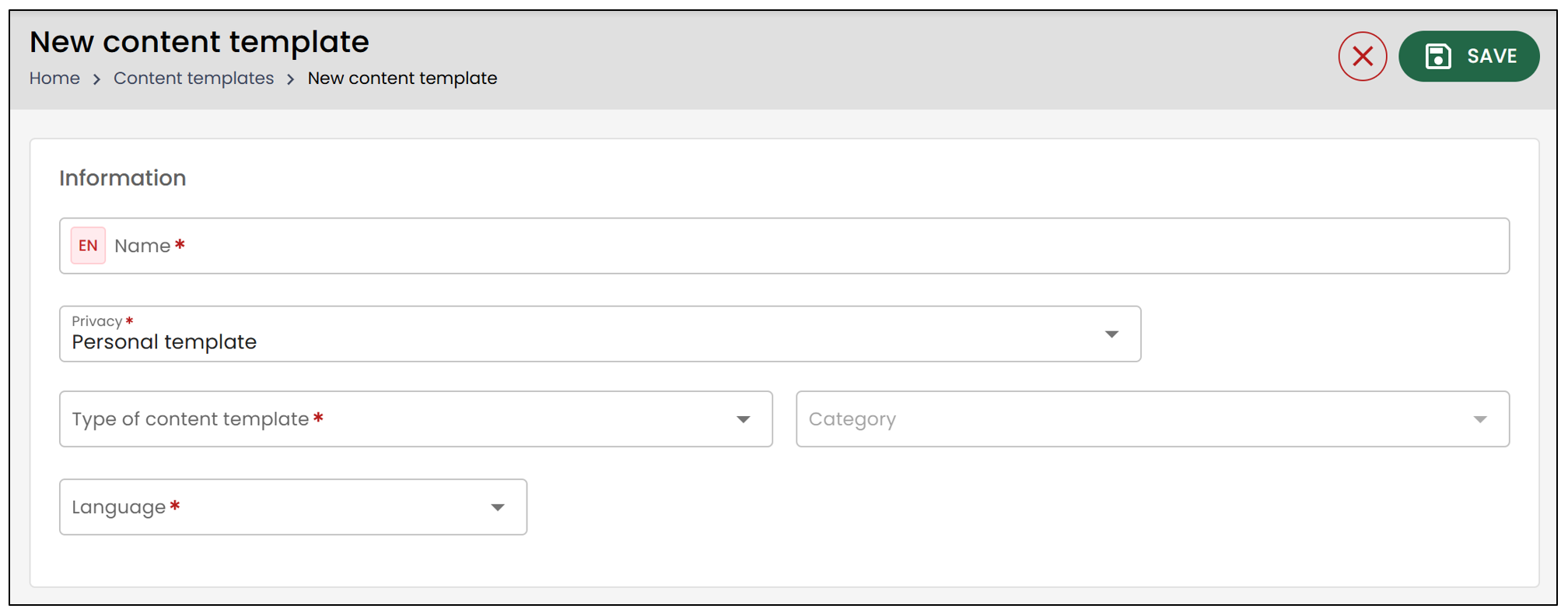
- Enter the Name of the content template.
- Select the Privacy of your content template from the drop-down list.
- Company : All system users will be able to access it. Permissions are required to create this type of message.
- Template from a folder type : You will need to select a folder type from the drop-down list. Anyone with access to this type of folder will be able to use this predefined message. Permissions are required to create this type of message.
- Personal template : These are messages that only you will be able to see and use.
- Select eZsign for the Type of content template. This will be the only available option, but other types might be added in the future.
- You will then need to select a Category from the drop-down list.
- eZsign Folder : The content template message will be addressed to all signatories of the eZsign folder.
- eZsign Signer : The content template can be used when sending a private message to a signatory.
- Select the desired Language.
Content
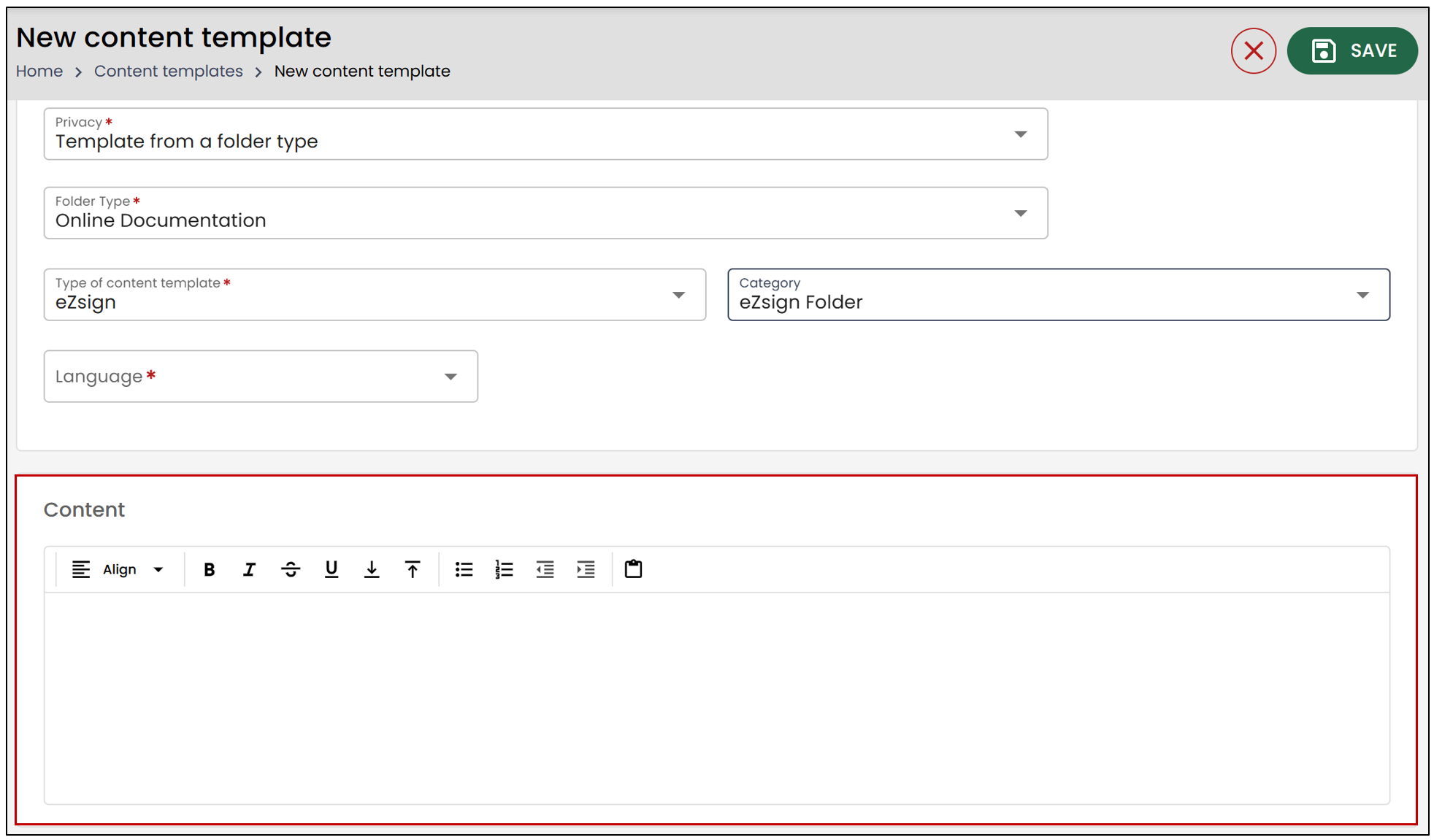
Enter your message in the Content section. This message can be reused, as it is part of a content template.
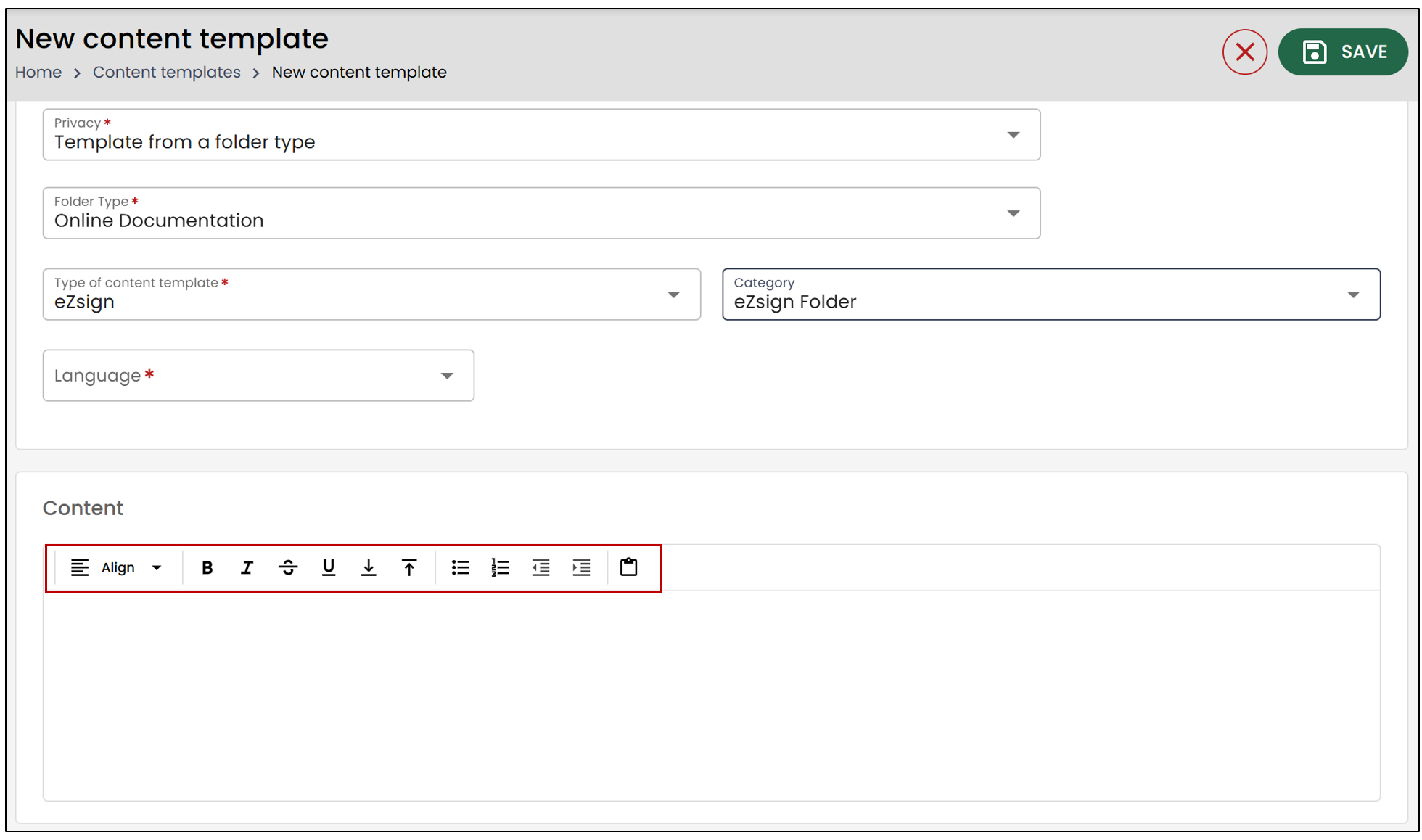
You also have several options for formatting the text.
When you are finished, click on Save in the top right corner to save your content template.
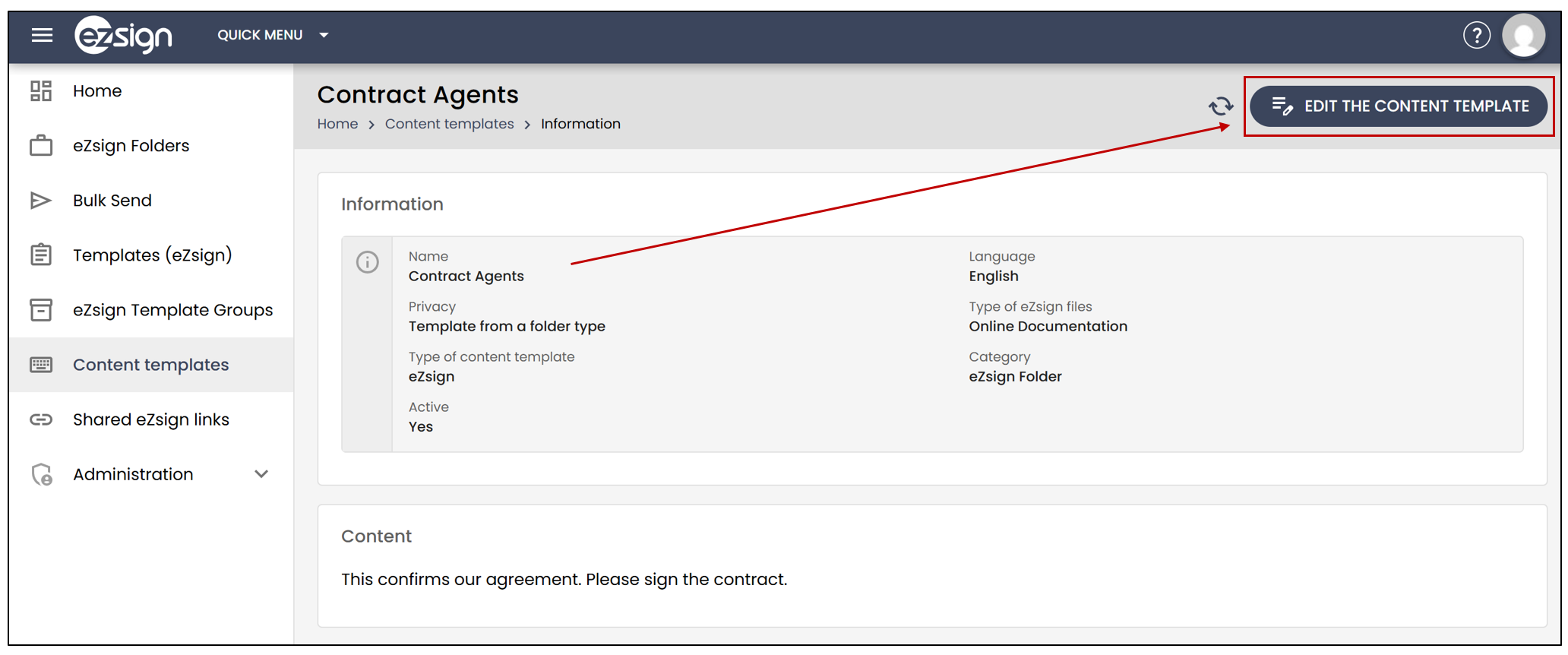
You will also have the option to modify the content template directly by clicking on Edit Content Template.
Add a content template to an eZsign template
In the left menu, click on eZsign Templates , then click on New eZsign Template**.**
Basic Information of the Template
You will need to enter the Basic Information for the template. Please refer to the article Adding/Loading/Editing a Template.
If you wish to add a content template, you will need to select the eZsign Template Type and the corresponding Folder Type. For example, if my previously created content template was of the Online Documentation folder and I selected eZsign Folder Type for the Confidentiality , I will need to match my template accordingly.
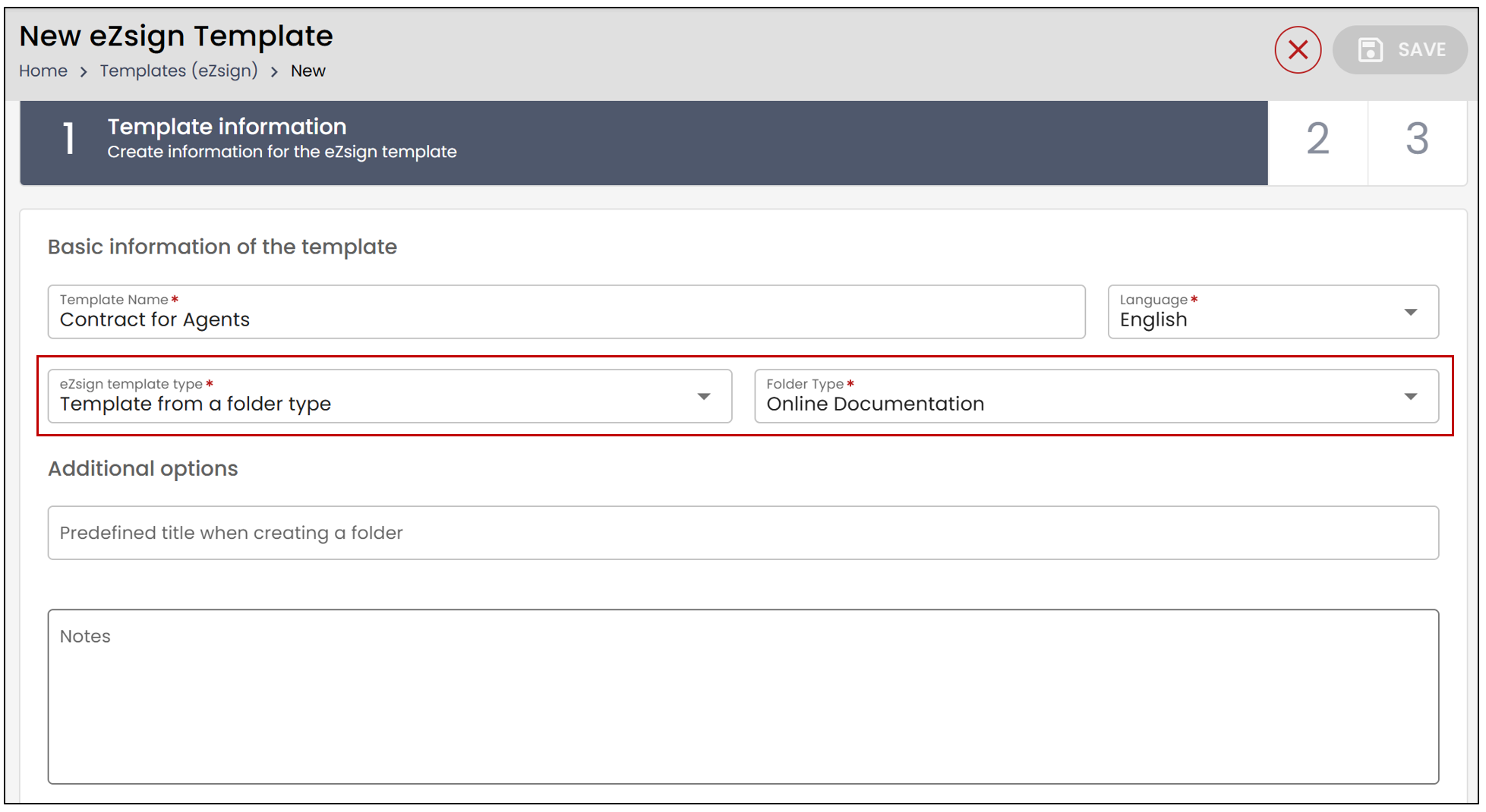
To Use a content template for the message to everyone when sending the eZsign file , you will need to check this option.
You can then select your content template from the drop-down list. In this example, the previously created content template is Contract Agents**.**
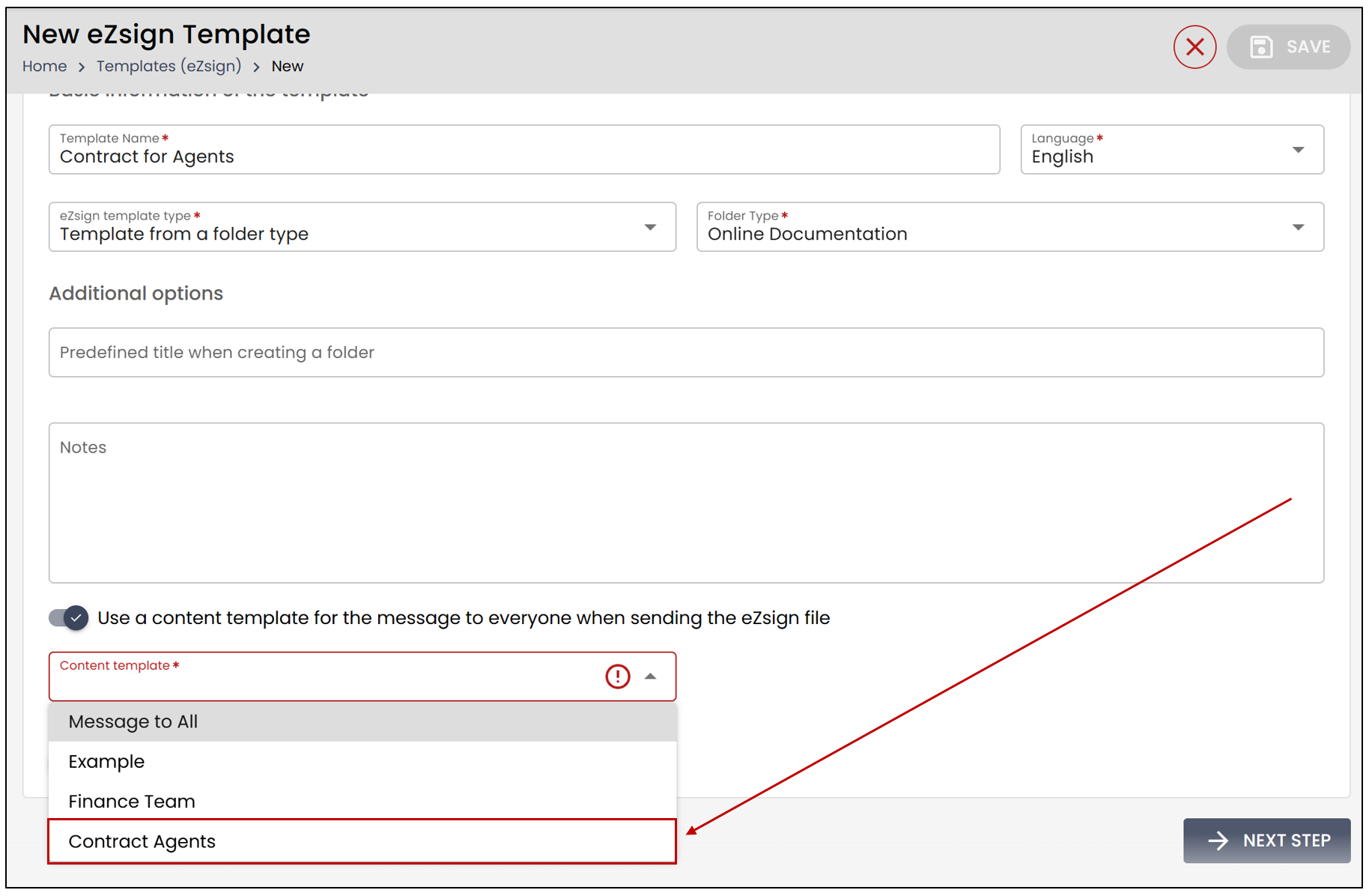
- When finished, select Next Step in the bottom right.
Adding Roles
Roles are the people who will need to sign/complete/take action on the document.
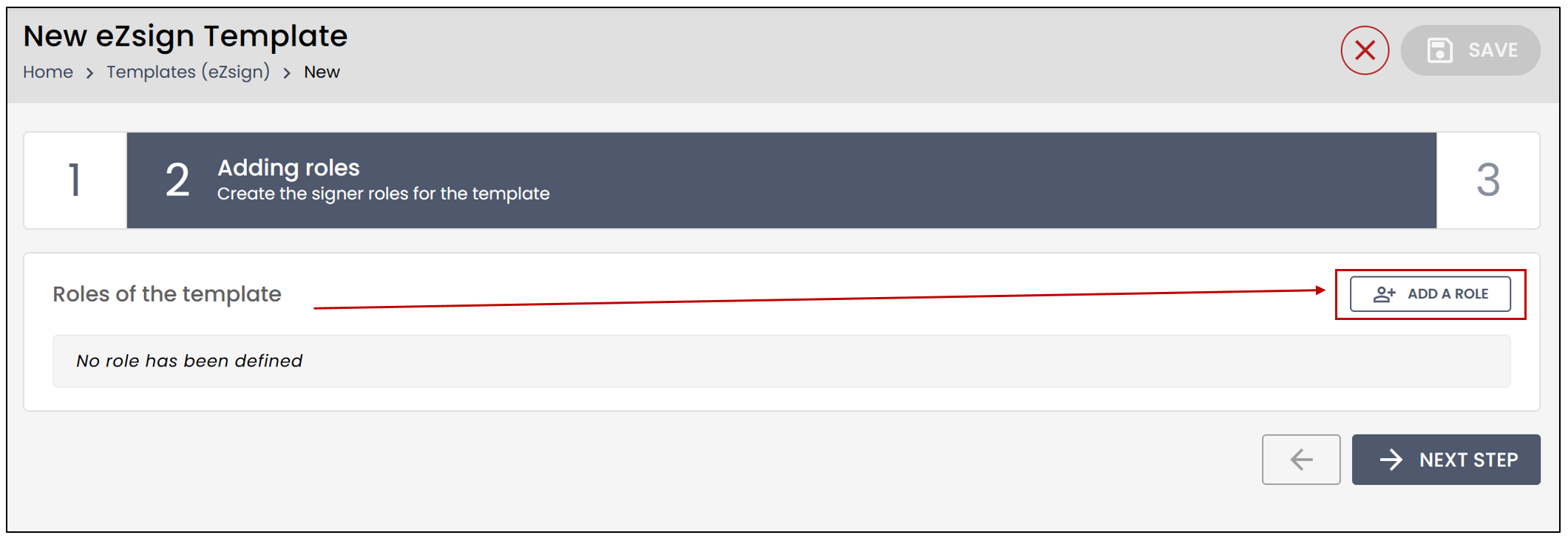
- Click on Add a Role.
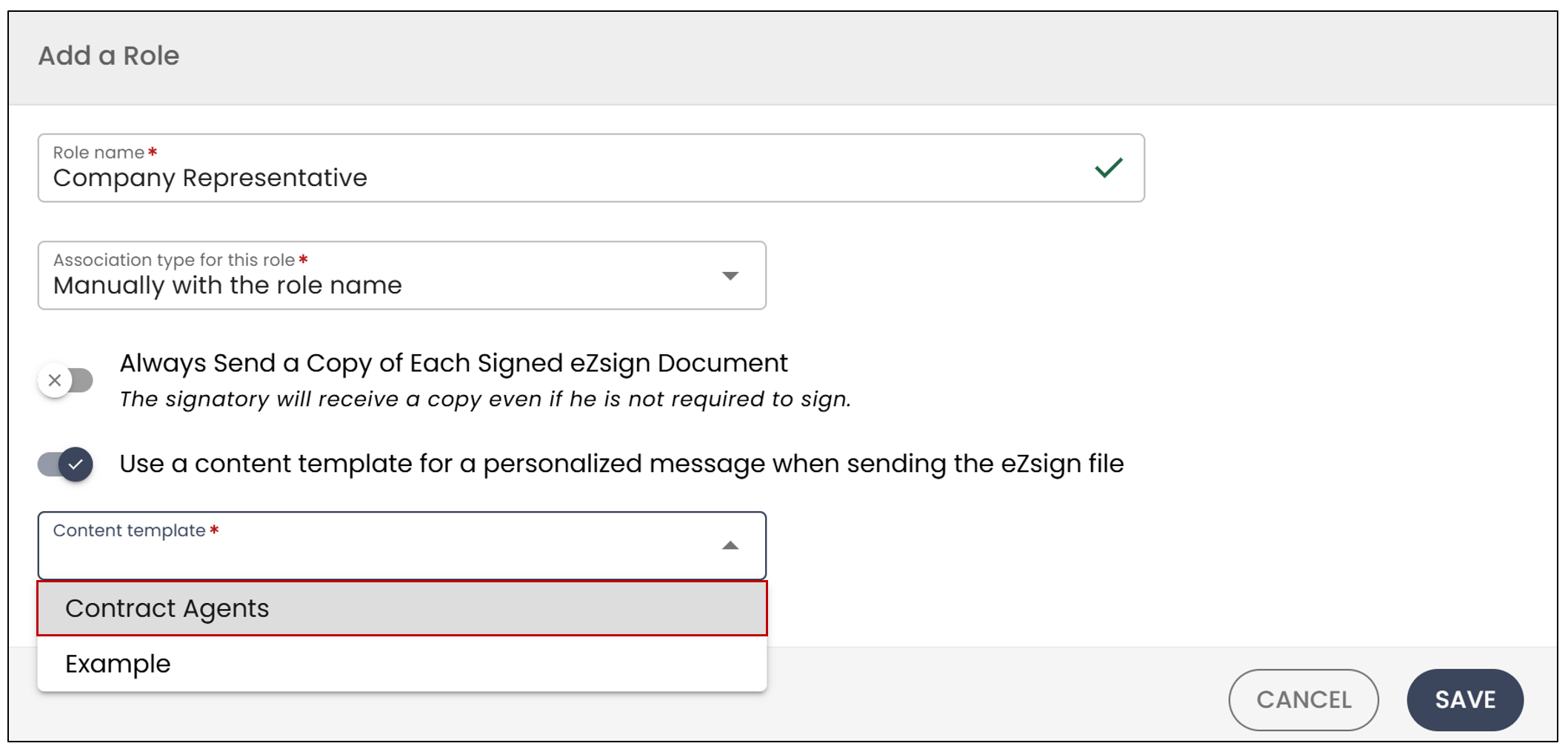
- Enter the Role Name. In this example: Company Representative.
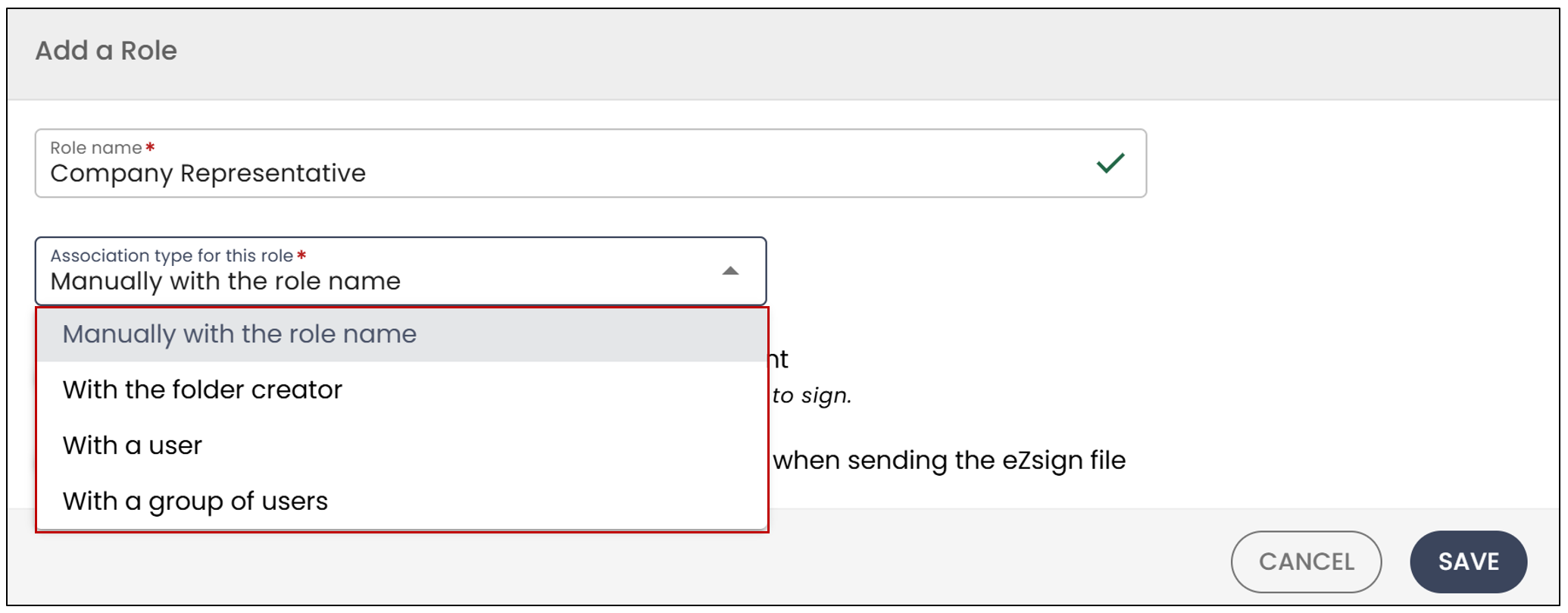
- You have the option to directly add a person to this role by selecting an Association type for this role.
- Manually with the role name : The association with this role will be done manually.
- With the folder creator : The folder creator will always be associated with this role.
- With a user : You can select a user from the drop-down list to be associated with this role.
- With a group of users : You can select a user group to be associated with this role.
- If you have any content templates previously created under the eZsign Signatory category, they can be used when assigning a role if you check Use a content template for a personalized message when sending the eZsign file.
Click on Save.
Add all the desired roles. You should see them appear under Roles of the template.
When finished, select Next Step in the bottom right
For more information on adding documents to a template, please refer to the article Adding/Loading/Editing a Template.
Add a content template to an eZsign folder from an eZsign template
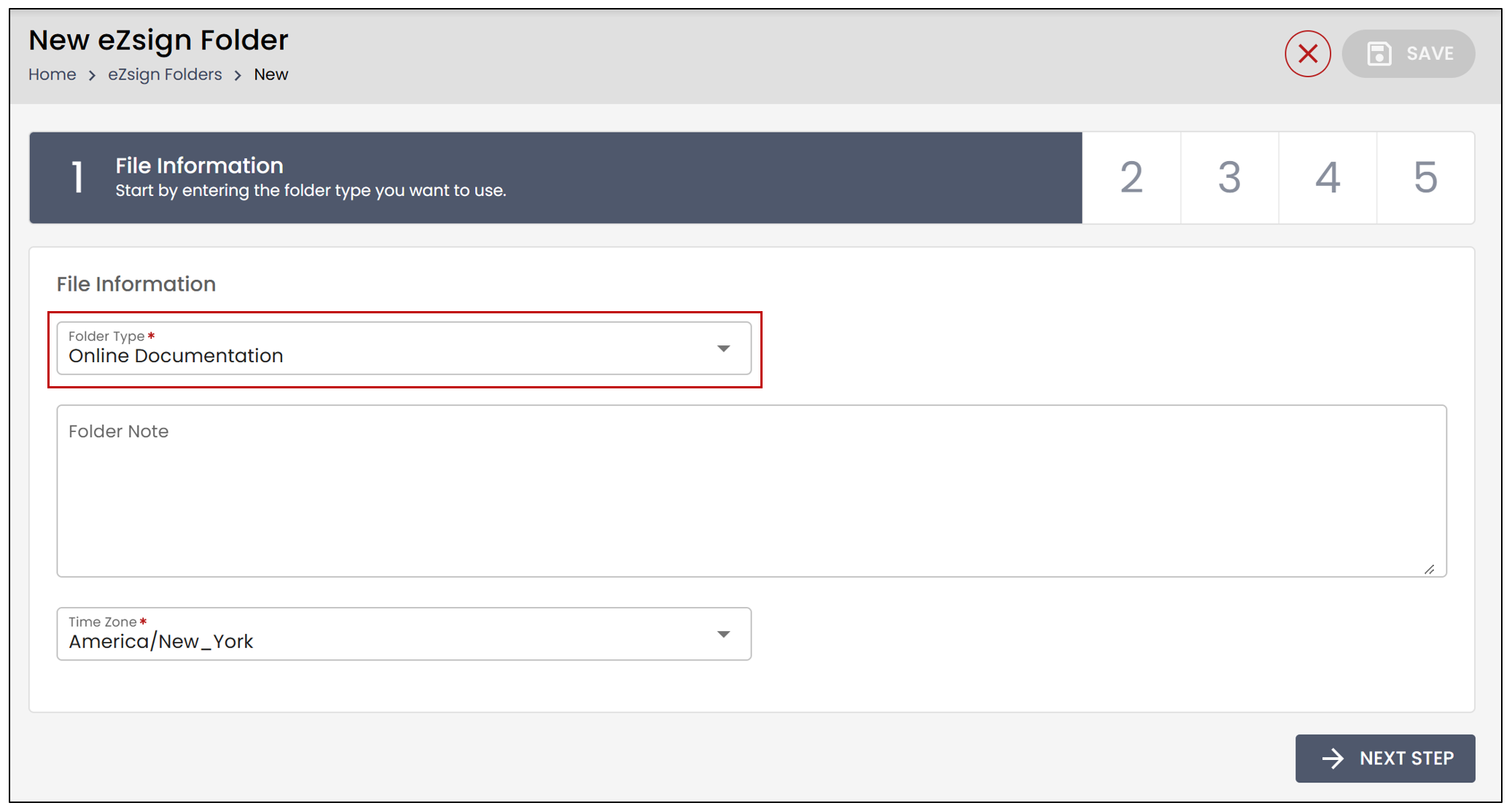
When creating a new eZsign folder, you will need to select a Folder Type. Make sure it matches the one selected when creating your content template.
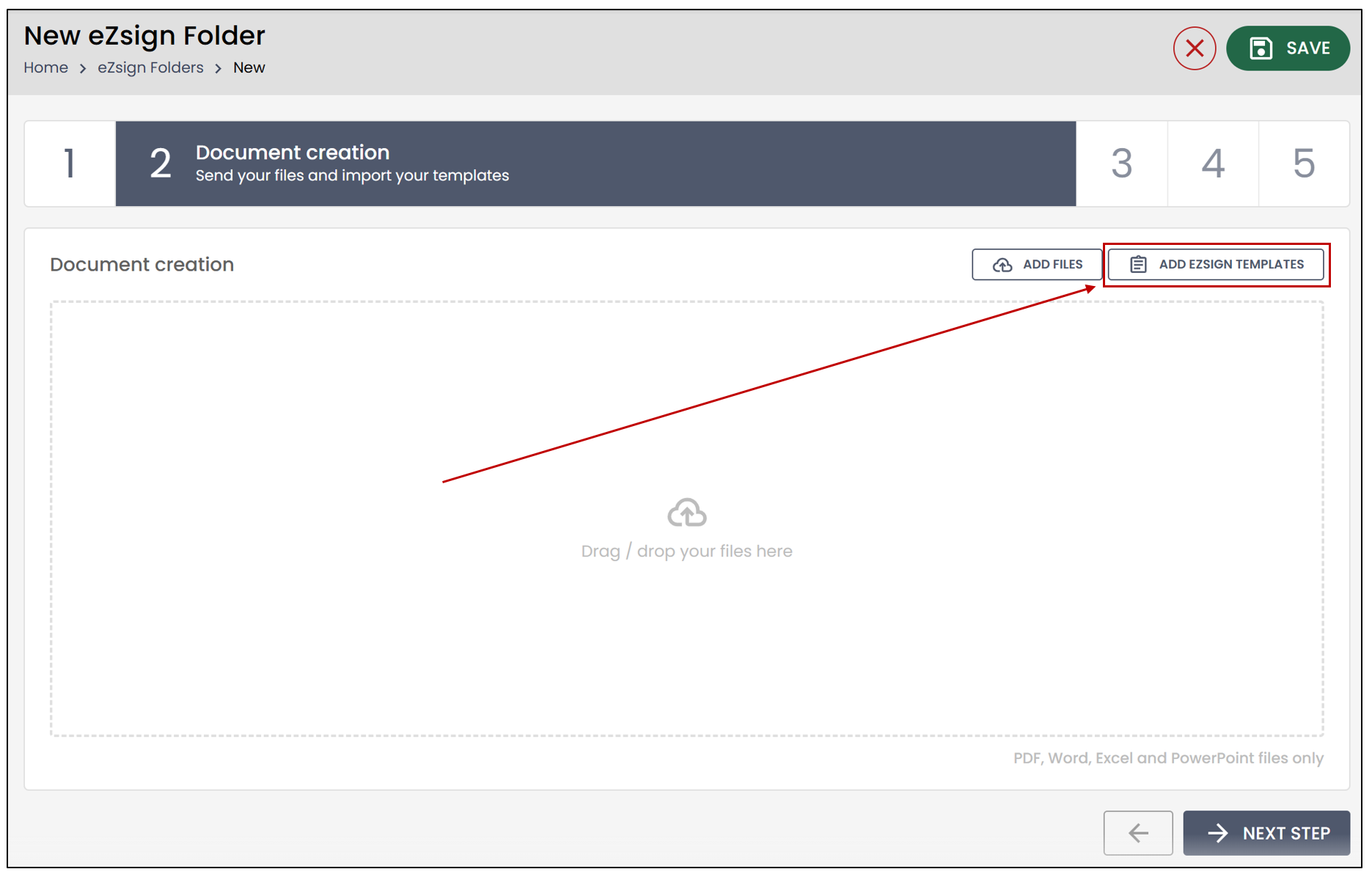
- During the Document Creation step, you will have the option to add an eZsign template. For more information, please refer to the article Creating an eZsign Folder.
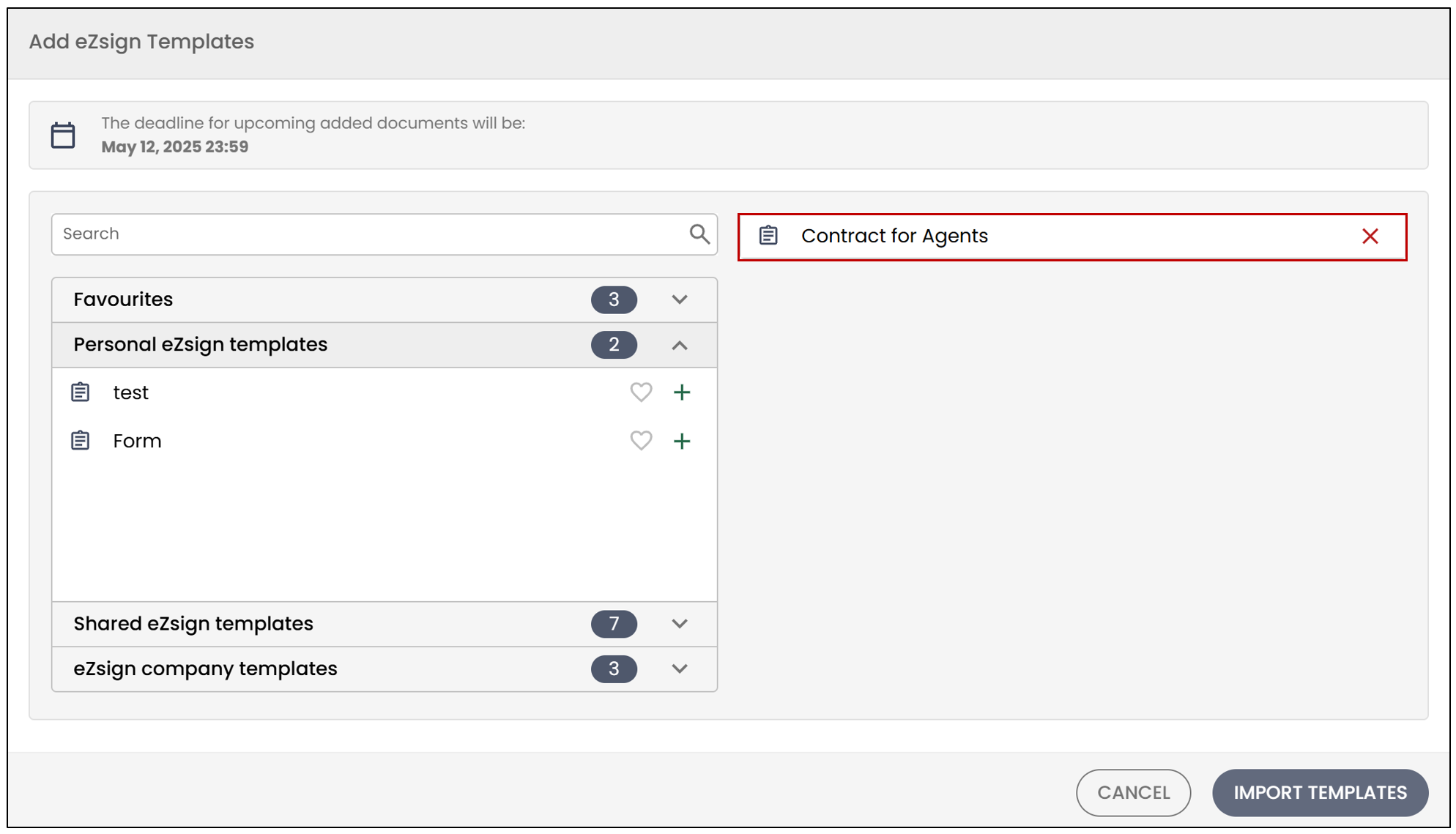
If you wish to add a content template from an eZsign template, please select it. For example, the eZsign template associated with the content template I created previously is named Contract for Agents.
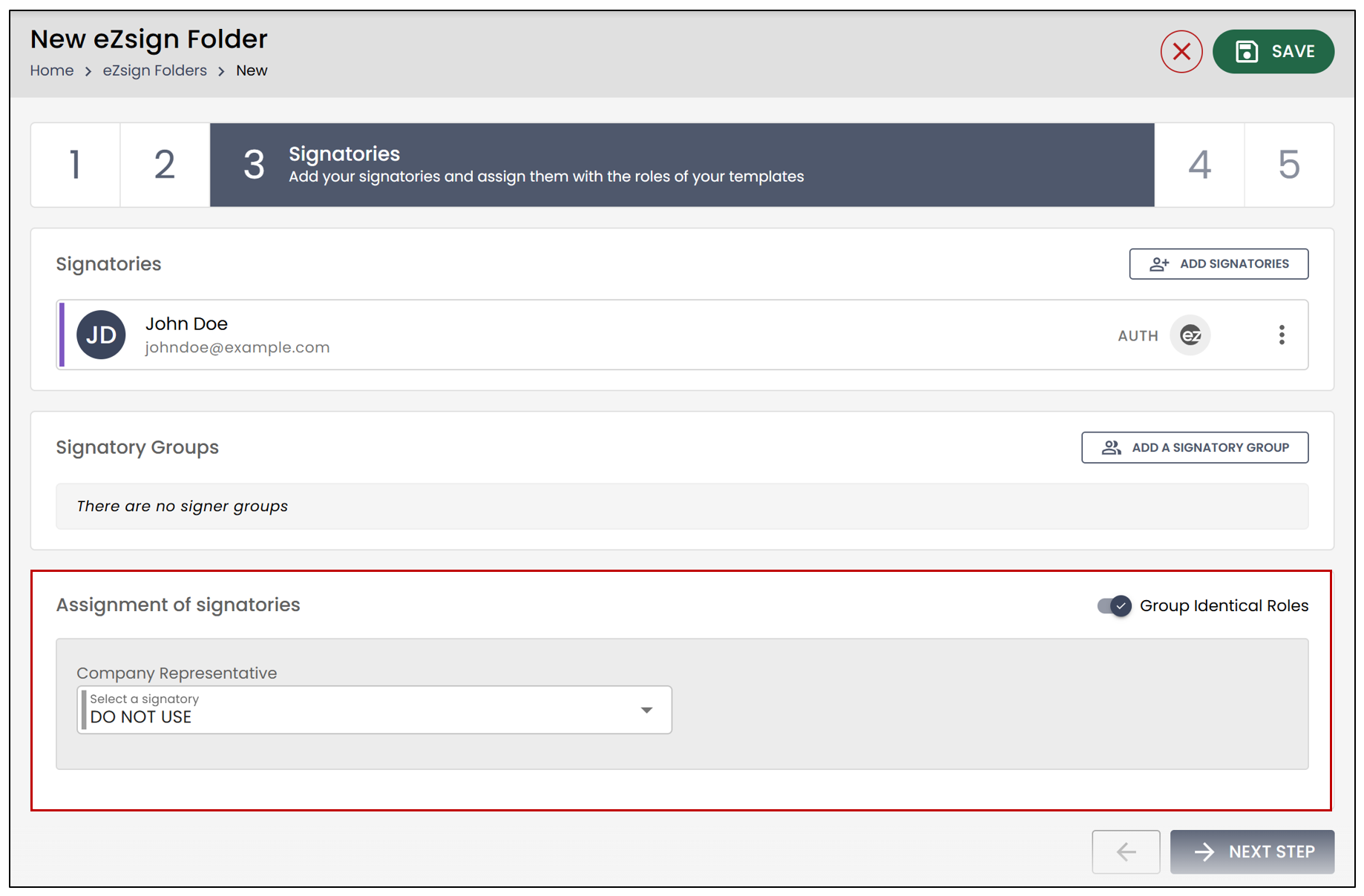
- In the next step, you will need to assign the signatories to a role.
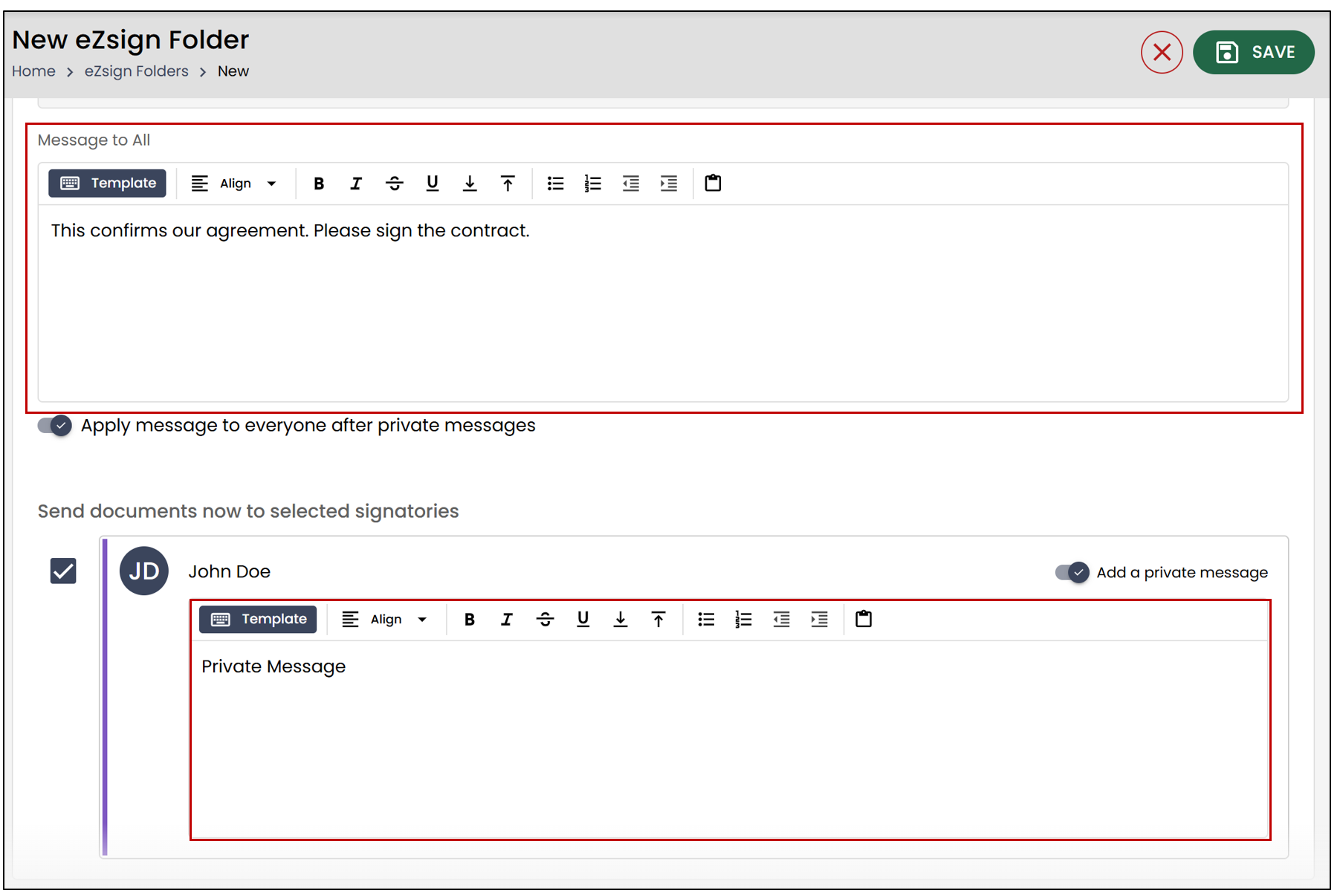
When sending the folder, you will be able to see the Message to All , as well as the Private Message sent to the company representative.
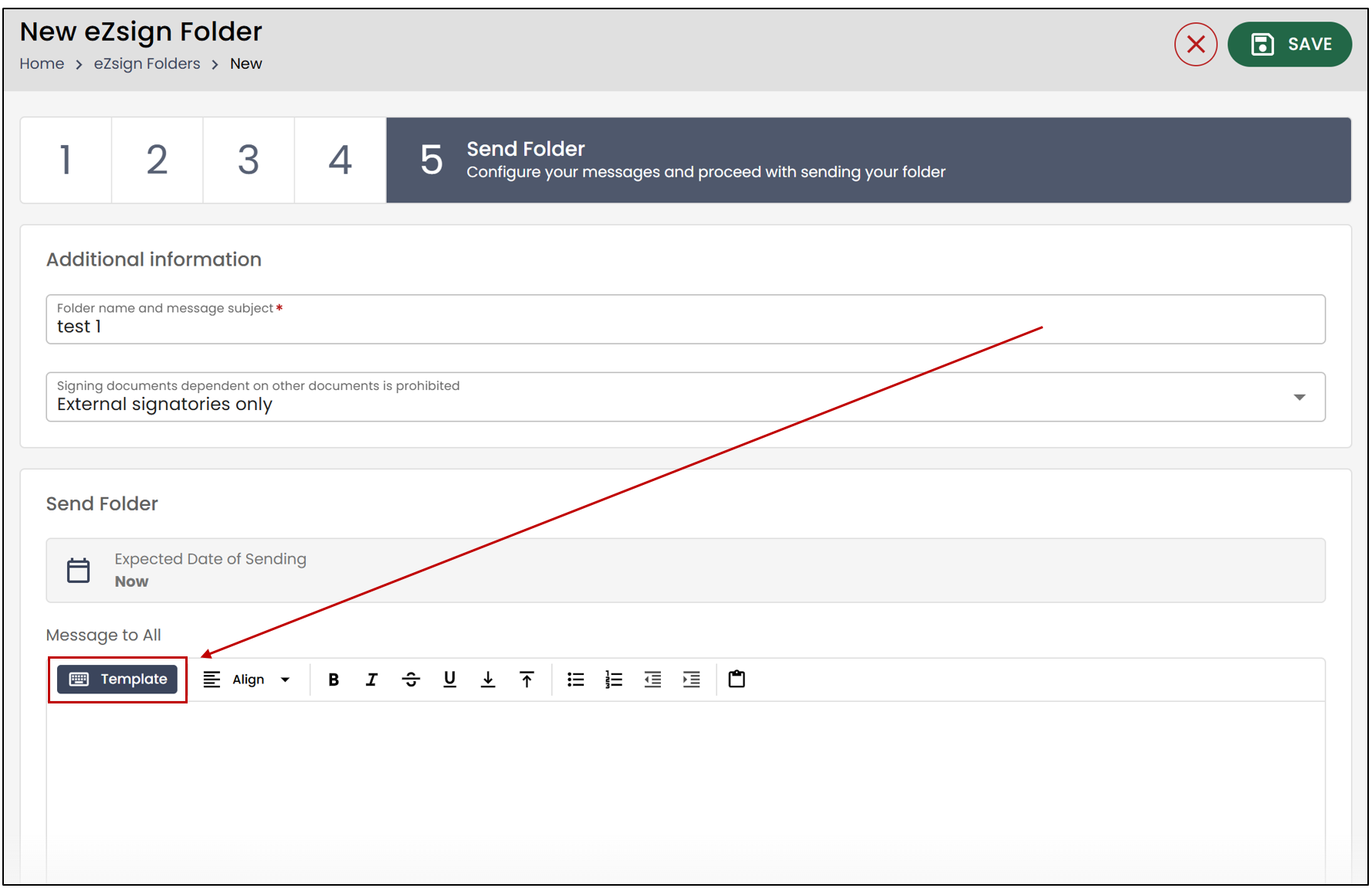
Add a Content Template Directly from an eZsign Folder
When creating an eZsign folder, in the Sending the Folder step, you also have the option to select Template.
- You can then select your content template directly from the drop-down list.
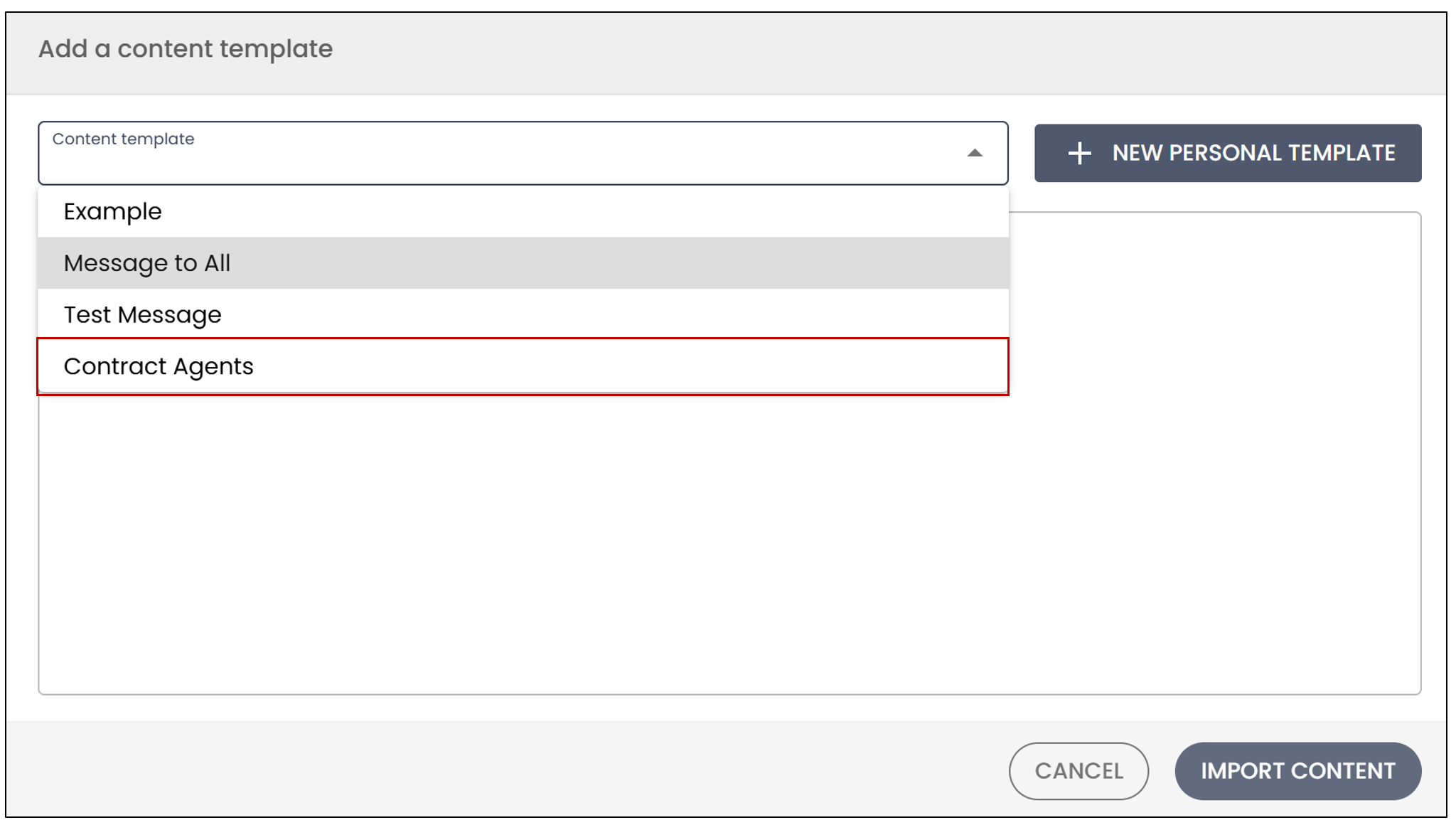
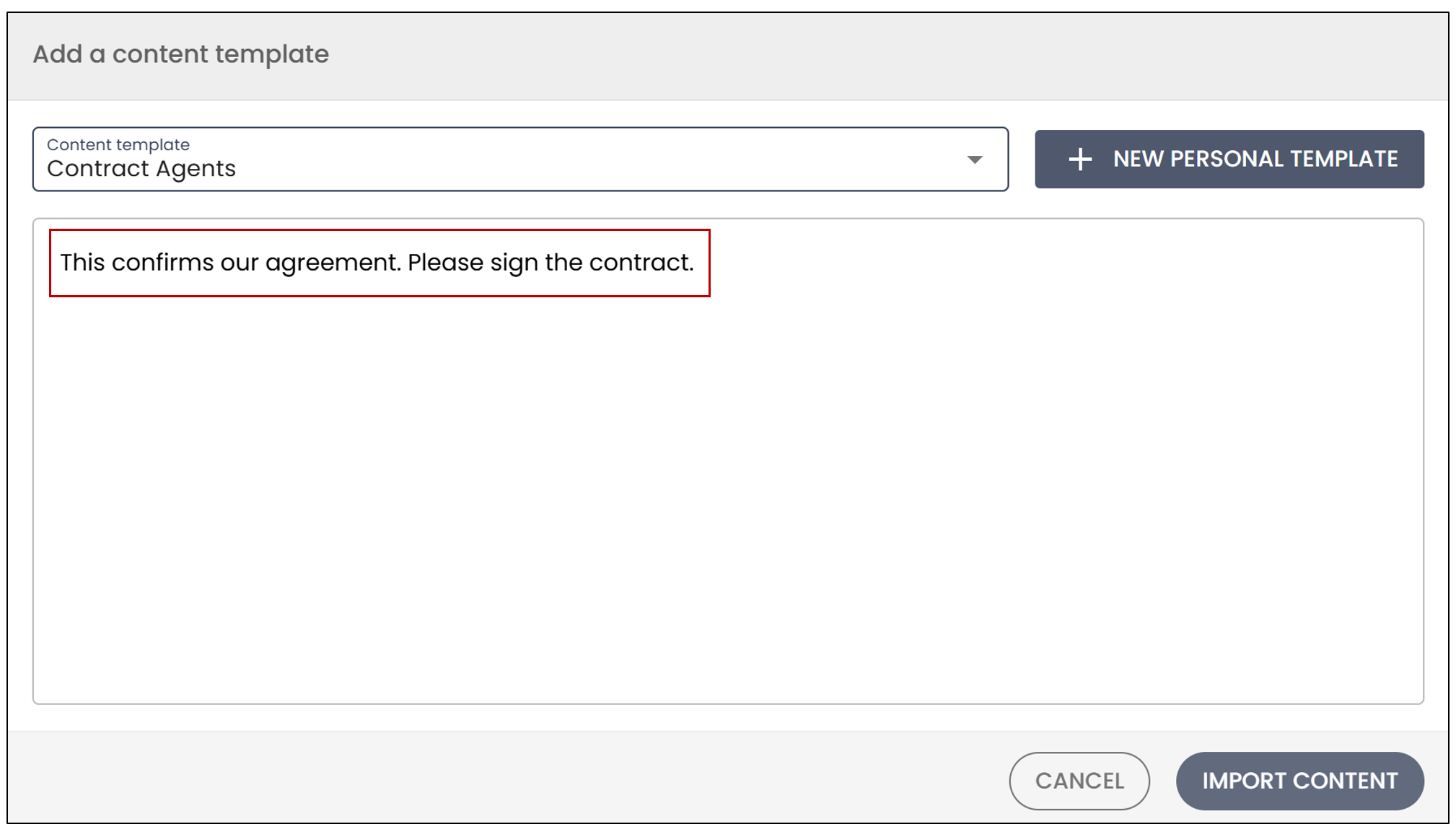
- Click on Import Content.
NOTE: These content templates will only be accessible to the user who created them from the left menu, Content Templates**** >>** New Content Template**. A new content template can eventually be created and saved in this space.
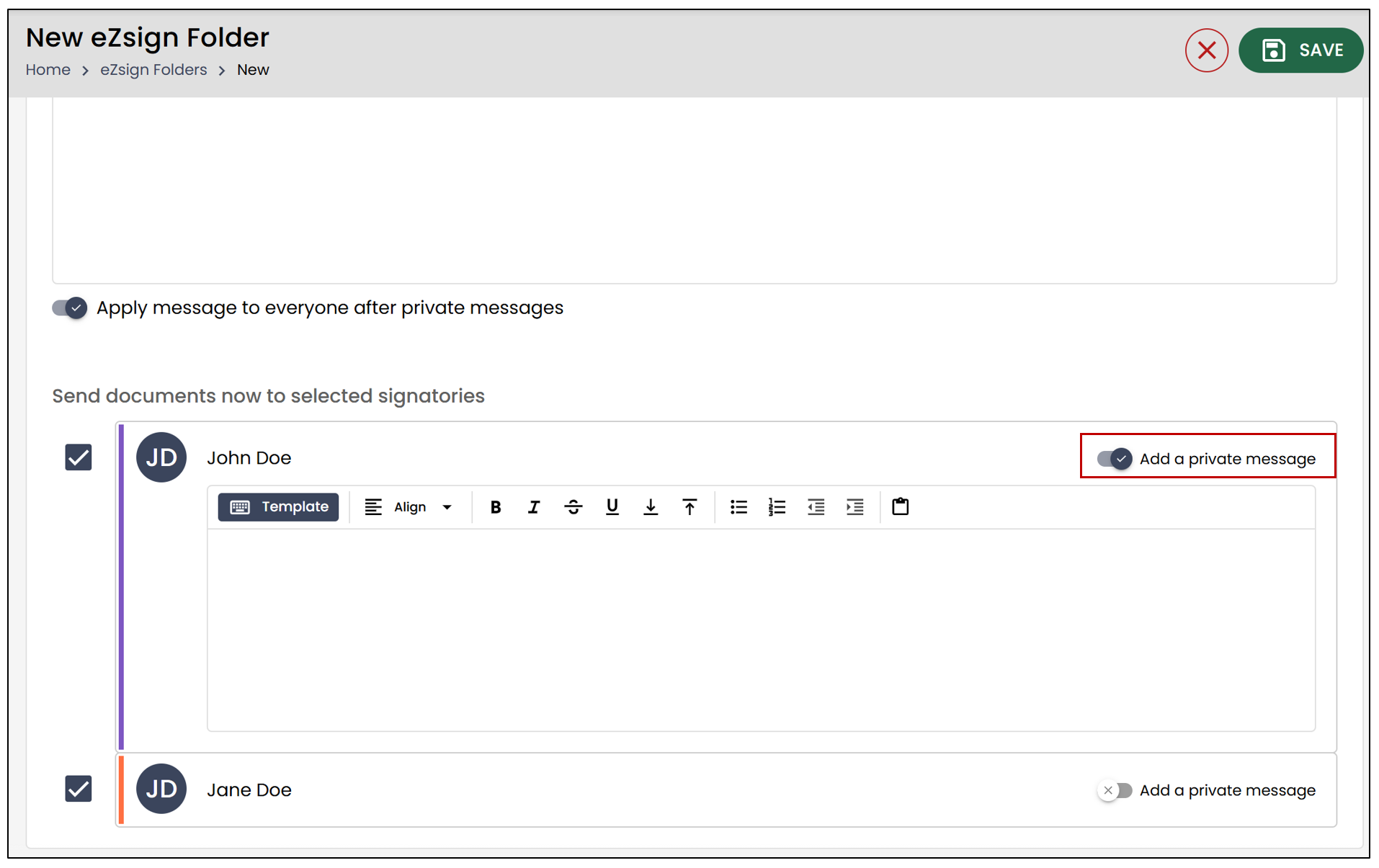
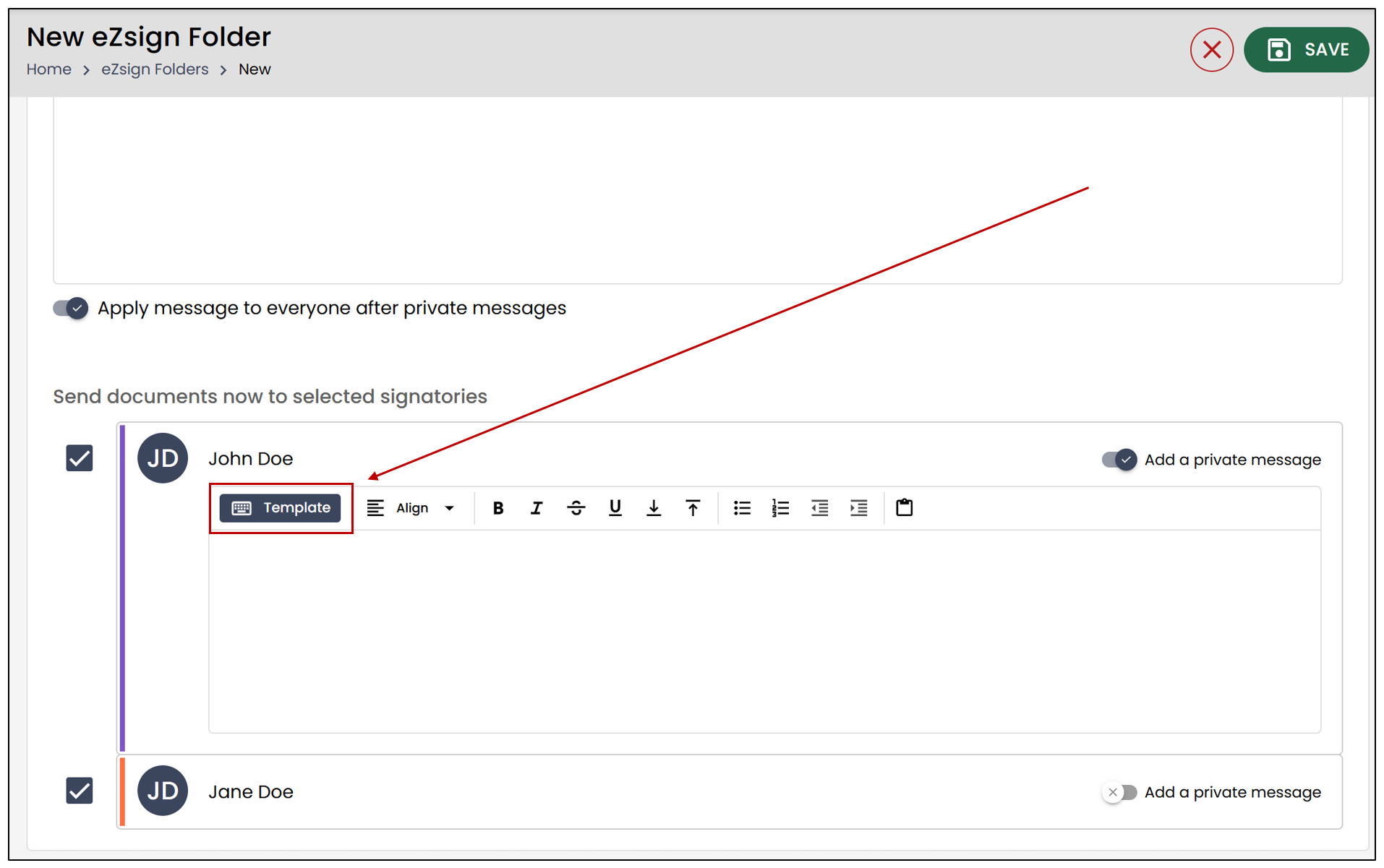
- If you wish to use a content template to send a private message to a signatory, check Add a private message , then click on Template.
- You can then select your content template from the drop-down list.
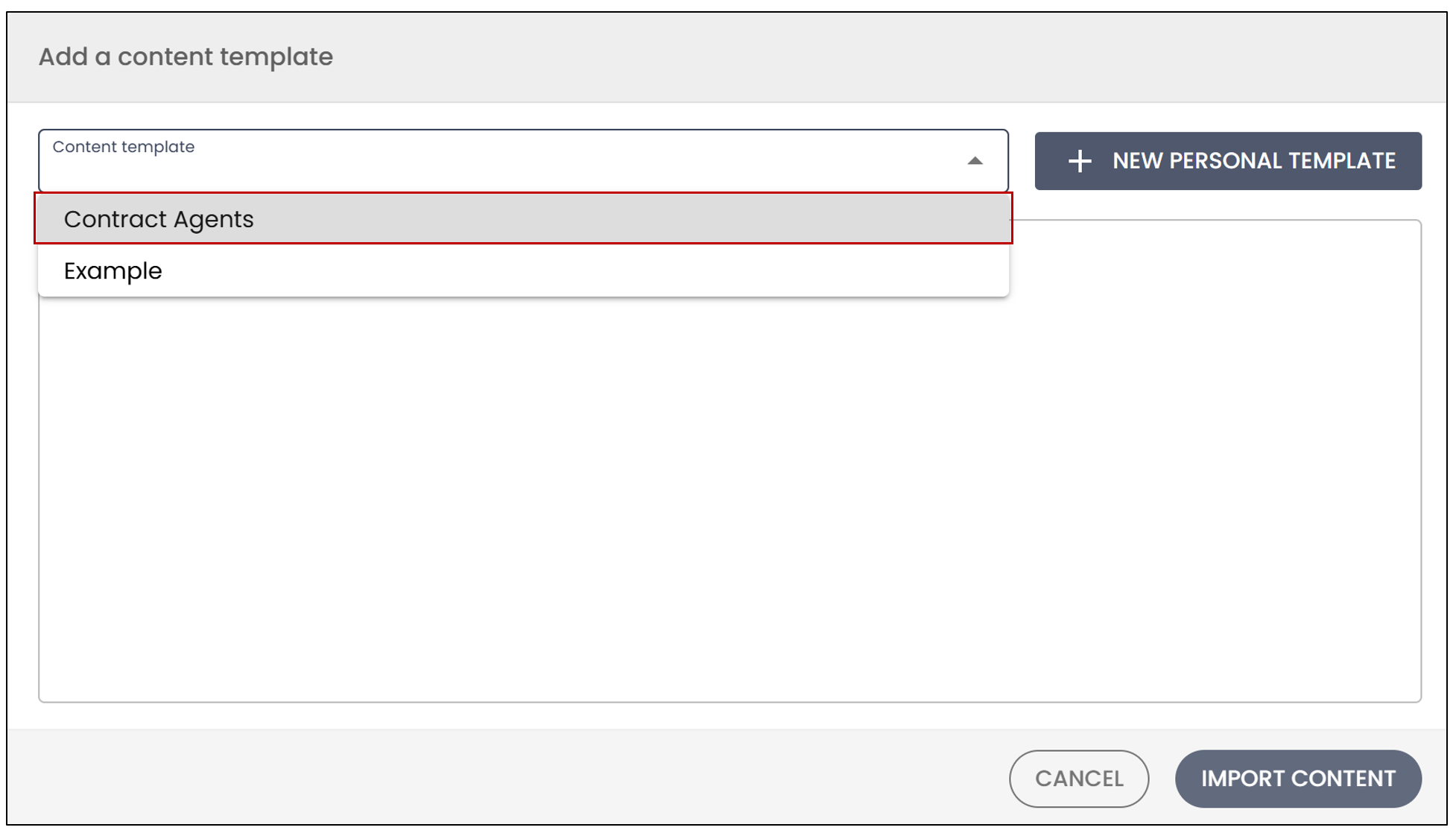
Click on Import Content.
When you are finished, click on Send eZsign File.