
English
eZsign Folder List - Where to Find My Folders?
eZsign Folder List - Where to Find My Folders?
Thanks to this article, you will be able to locate your eZsign folders within the eZmax application.
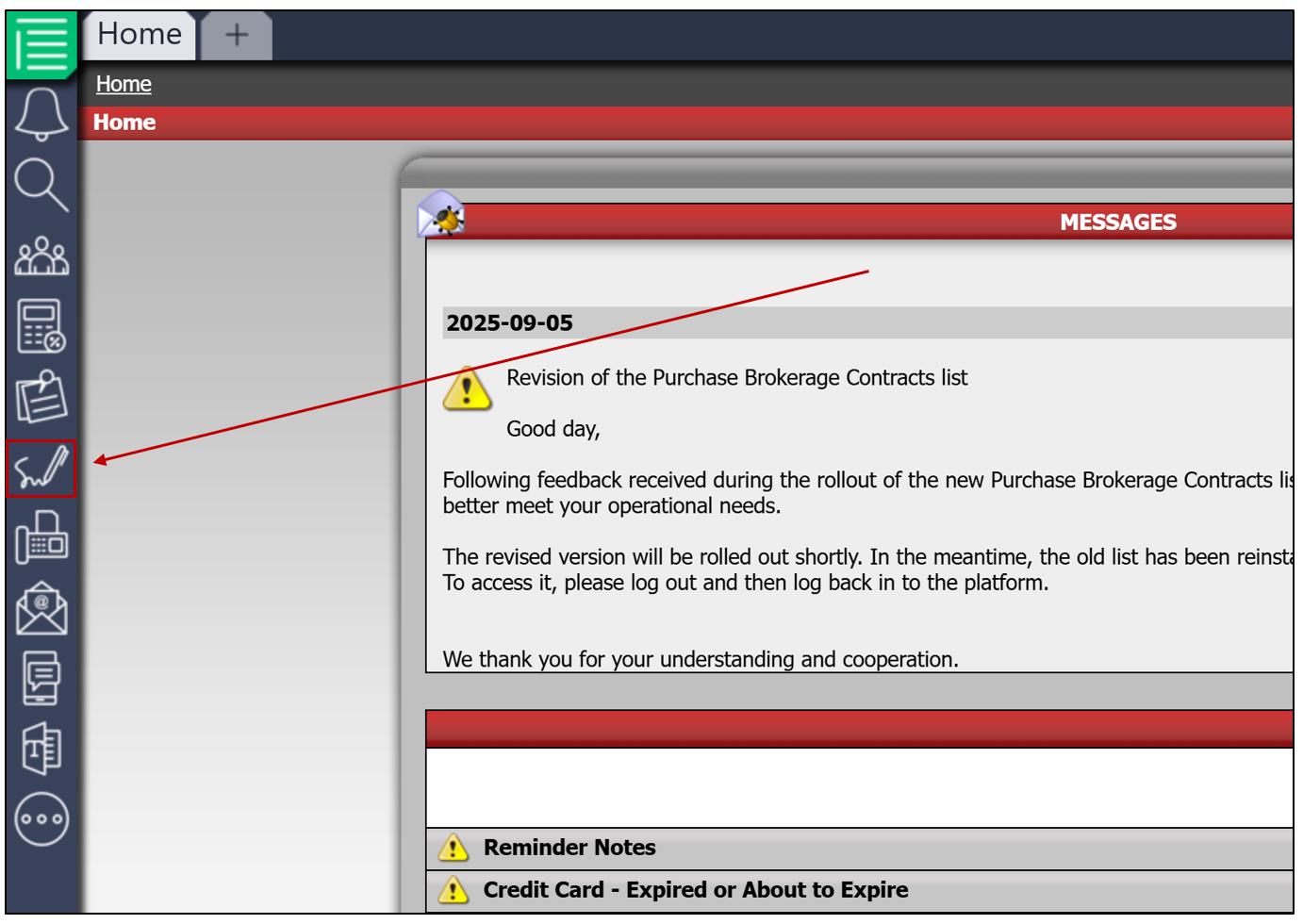
- From the main menu >> click on the

icon to access the eZsign Folder List.
Managing Filters in the Folder List
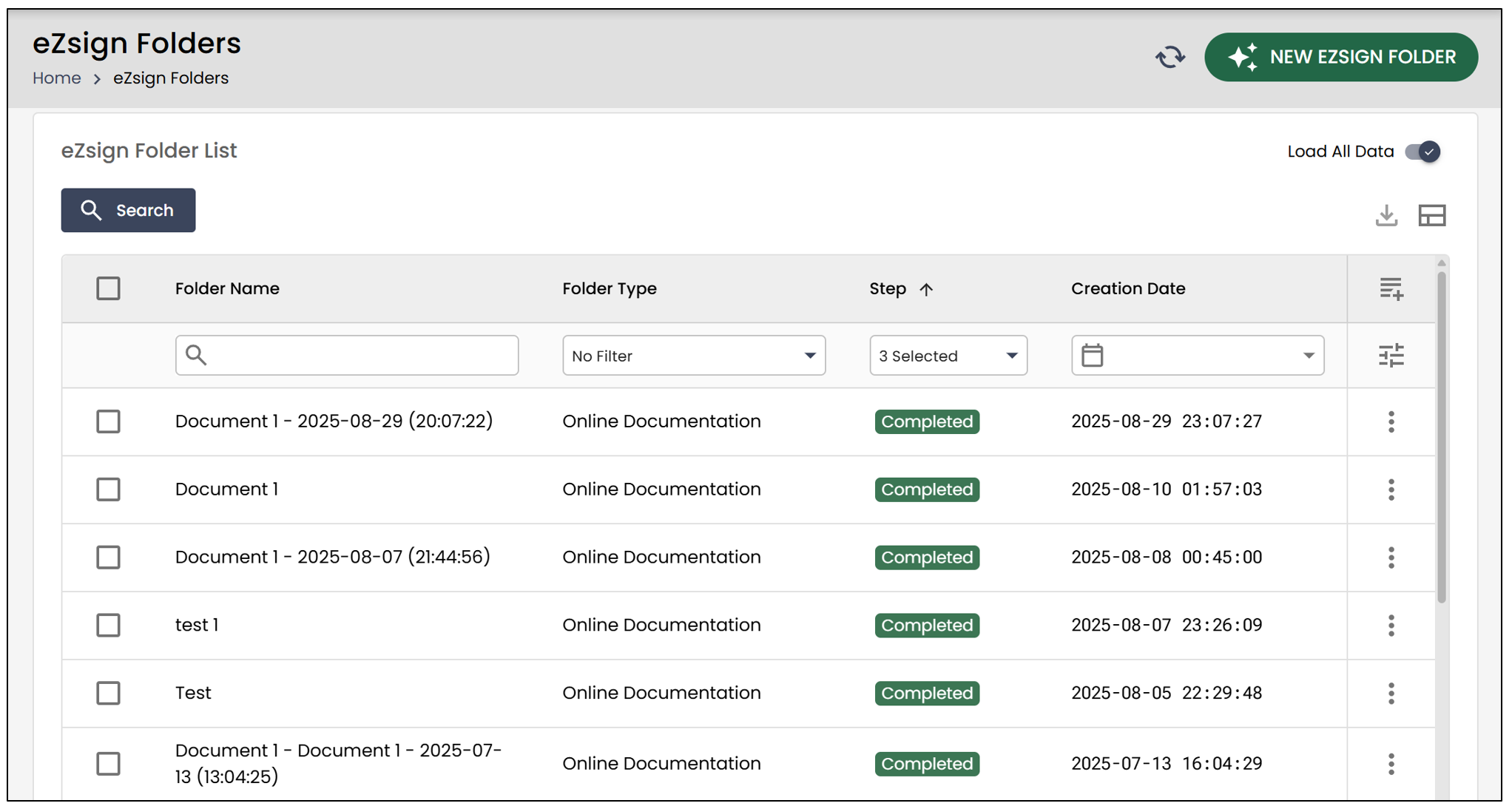
Whether a folder is expired, archived, completed, sent, or partially signed, it will appear in the eZsign Folder List.
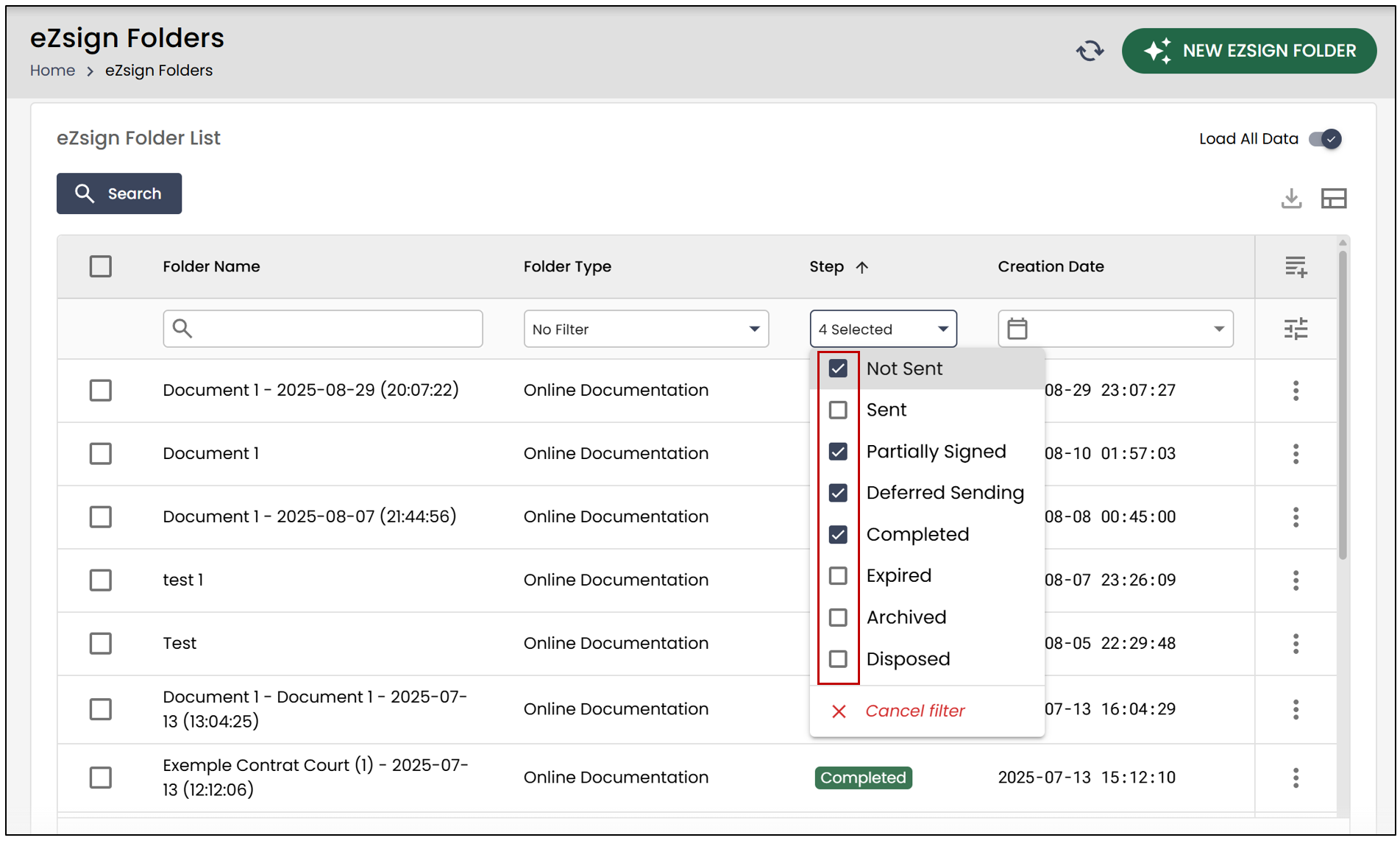
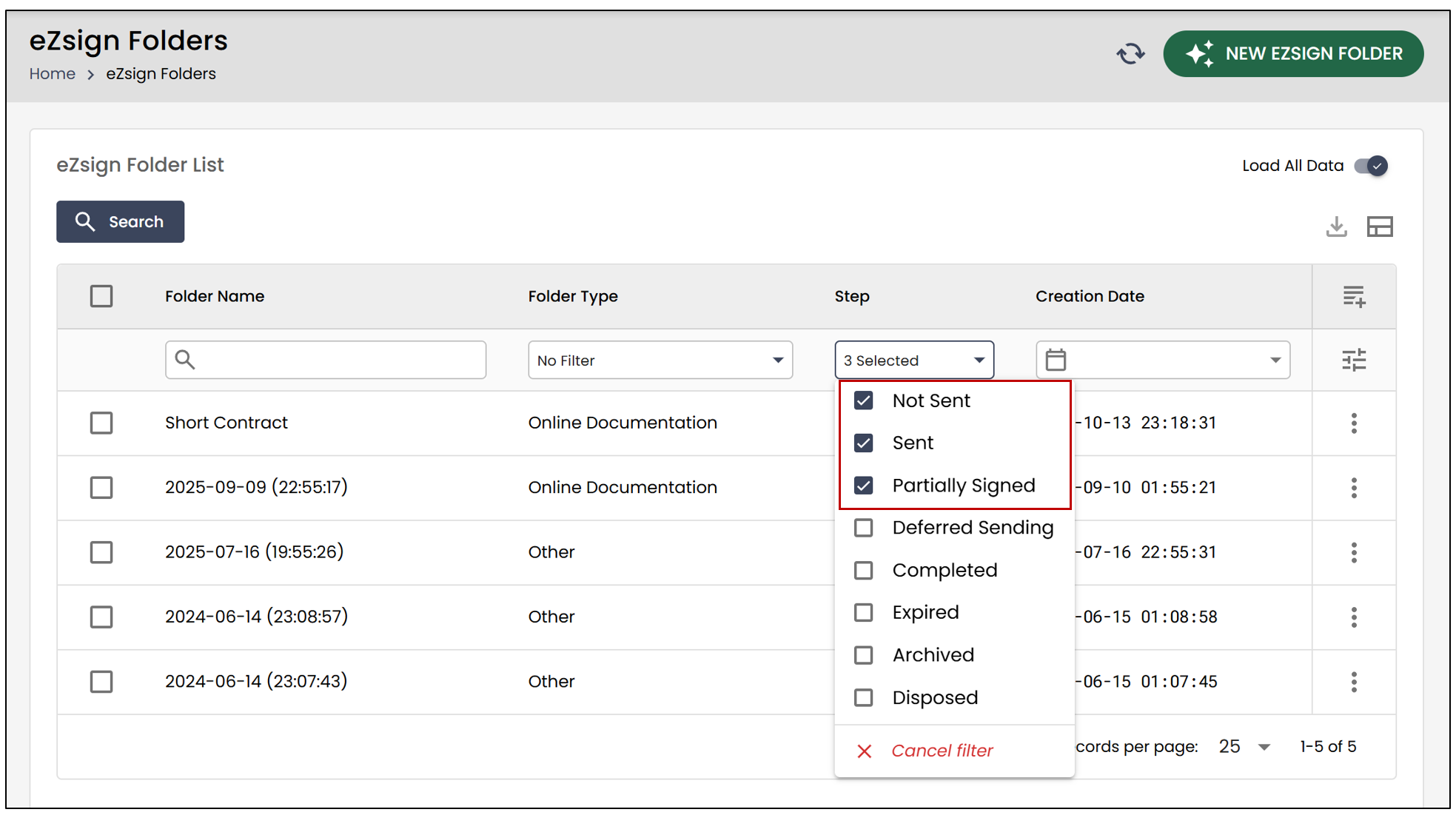
- In the Step section of the eZsign Folder List , you can select the desired filters. To add them, simply check the corresponding boxes.
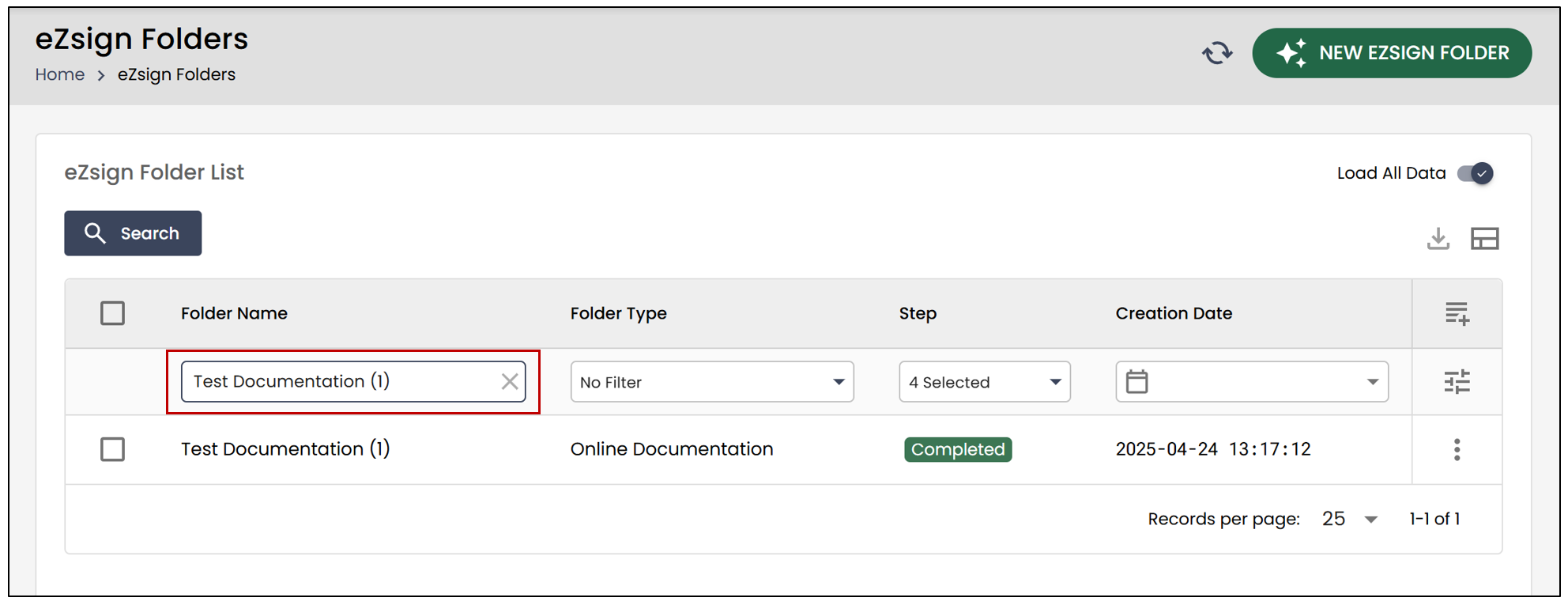
- You can also search by Folder Name. Simply enter the desired name, and it will appear in the list.
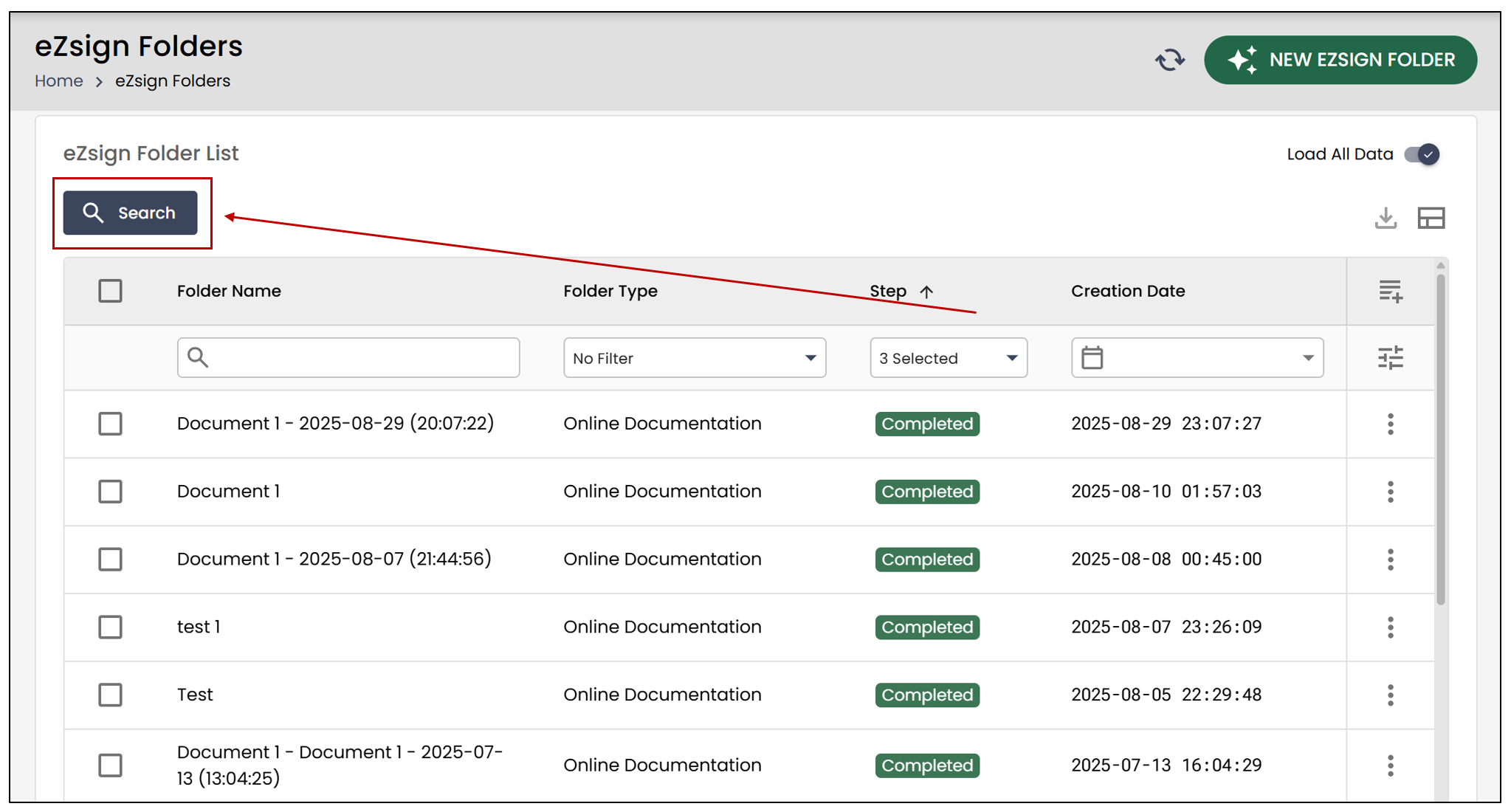
- If you want to perform an advanced search, for example by signatory name, click on Search.
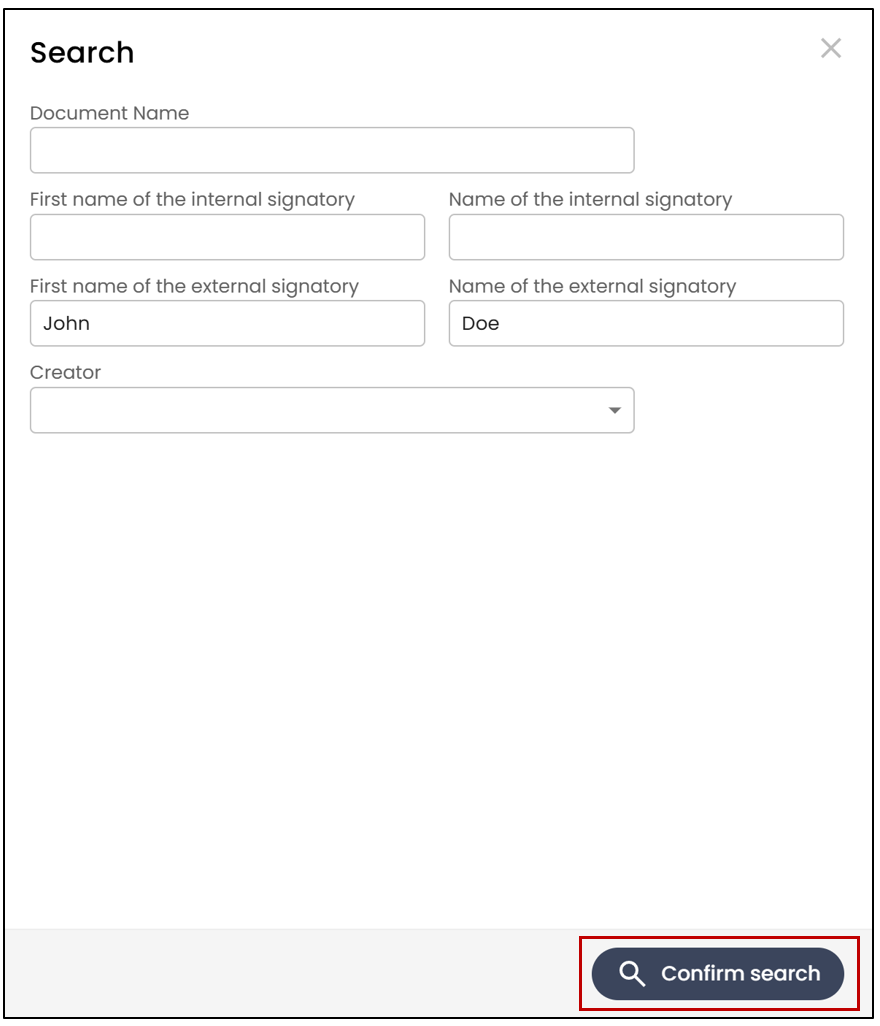
- Enter the desired information, then click on Confirm Search.
- If you want to display only documents in progress: sent , partially signed , or not sent , check these options in the Step section.
Customize Columns
- To customize the columns, click on the

icon, then check the columns you want to display.
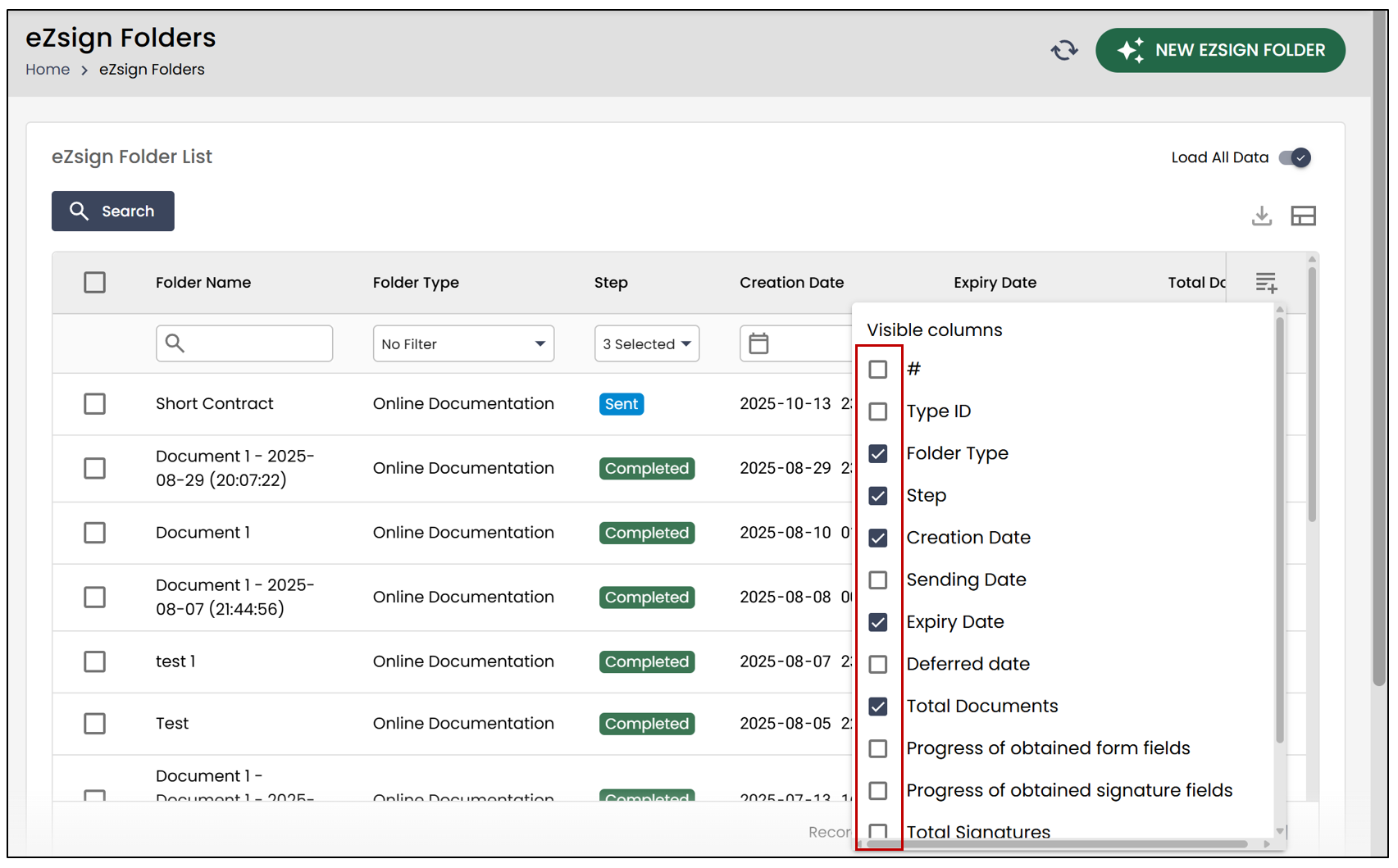
Save Presentation
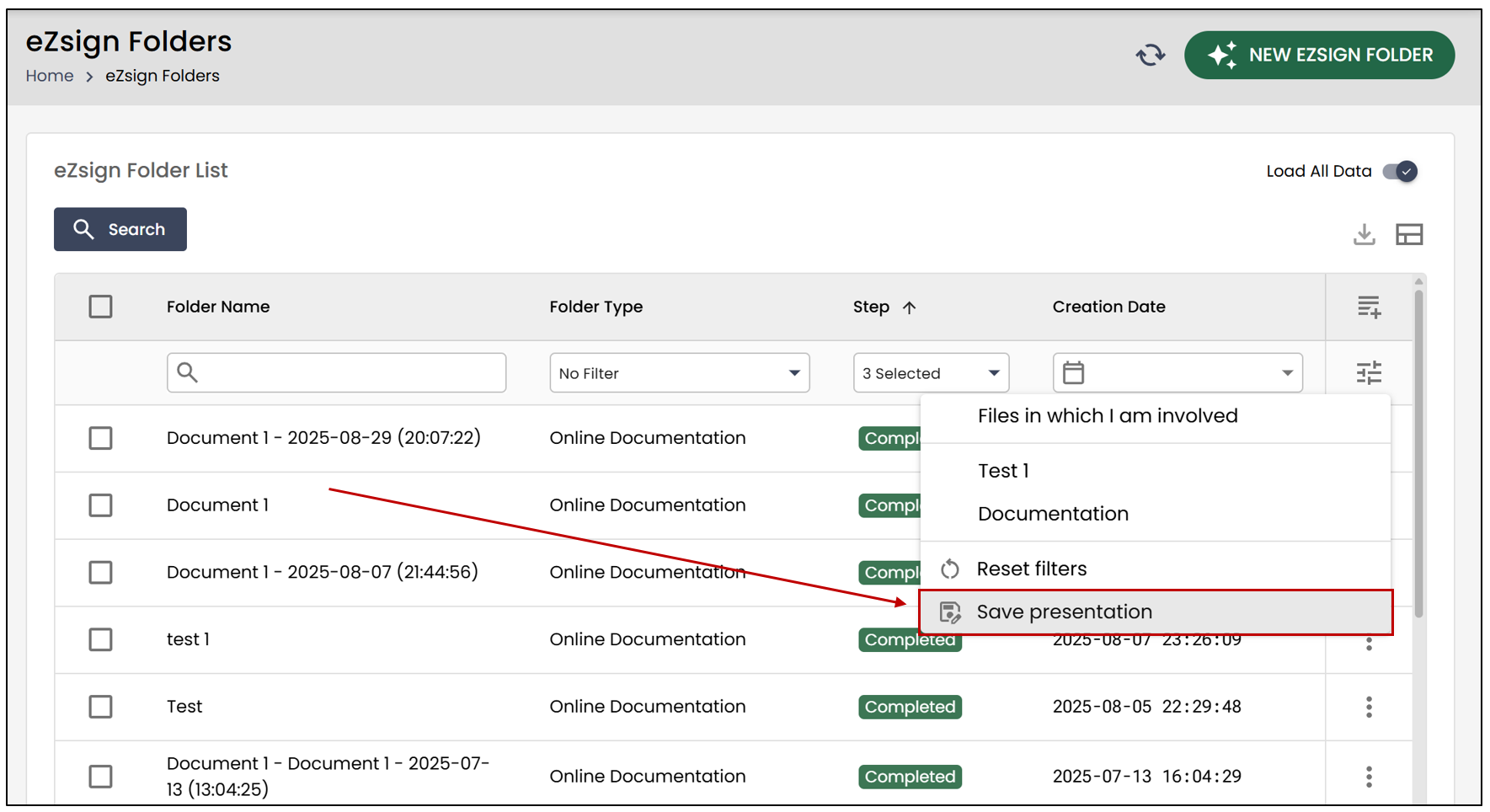
- To save the current layout, click on the

icon, then select Save presentation.
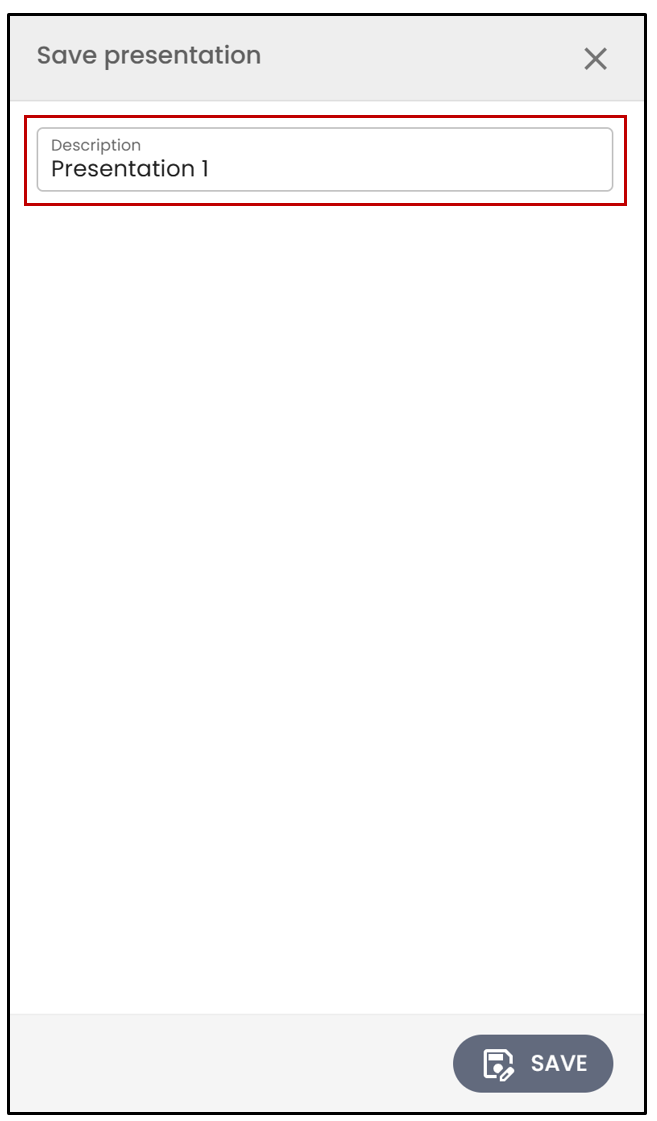
- Enter the presentation description, then click Save. The view will then be saved and can be reused later.
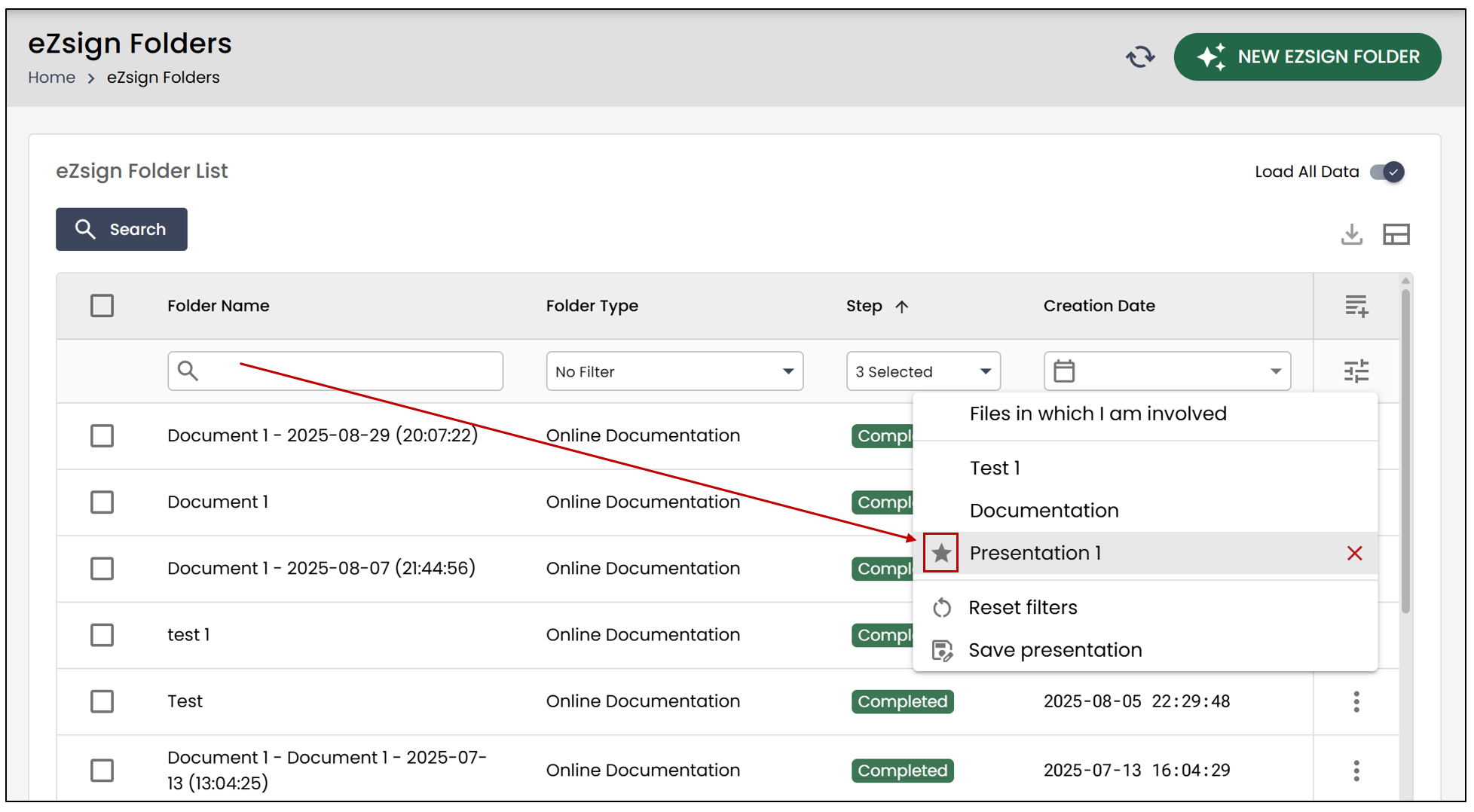
- To display it, select the
icon, then click on the desired presentation.
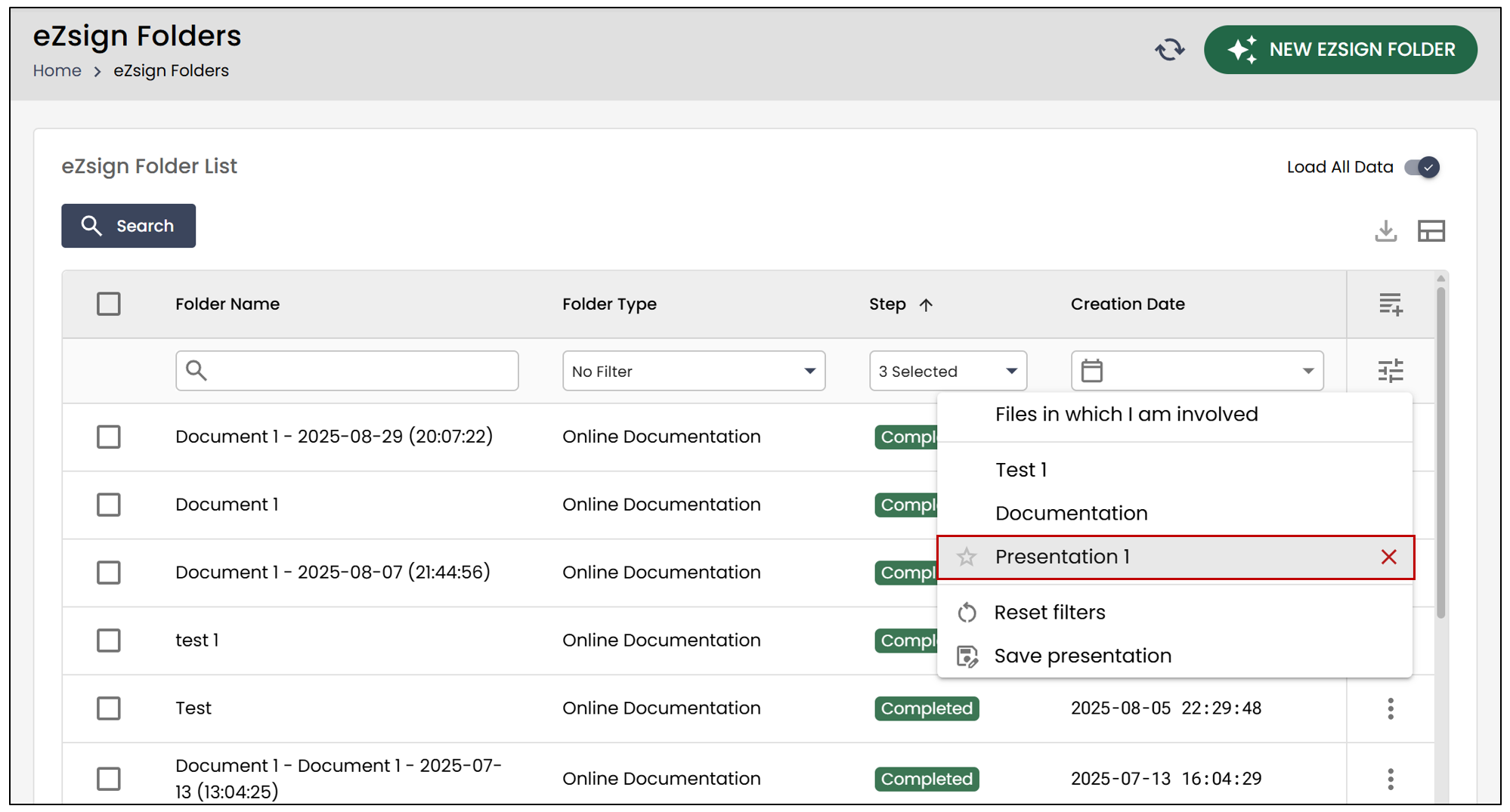
- To save a view as a favourite, click the star located to the left of the presentation name. Each time you access your eZsign folder list, this view will be displayed by default.