

English
Personalized Signature
The personalized signature allows for the application of a specific format when a document signature is required.
Personalized Signature for a User
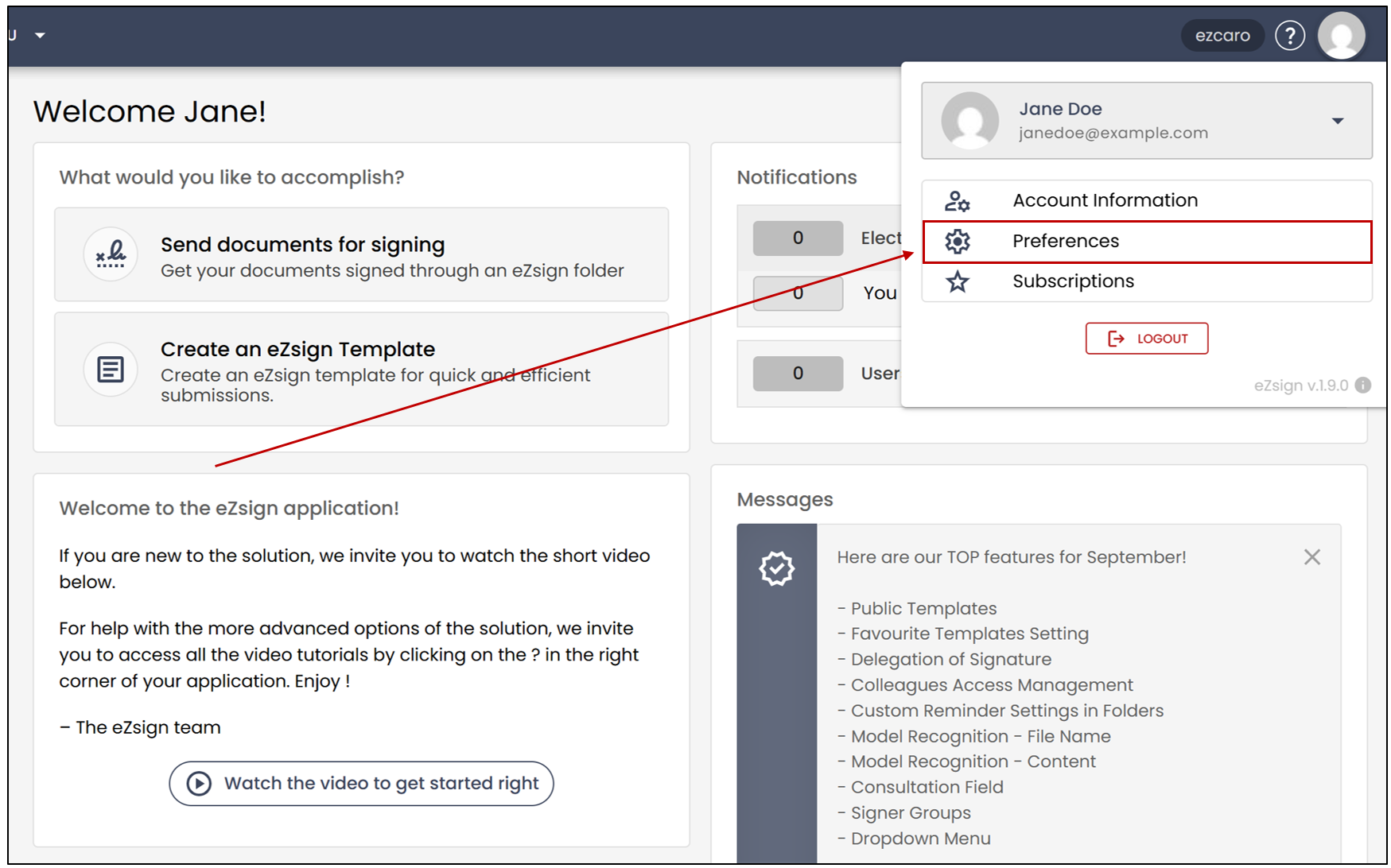
To modify the personalized signature, click on your profile picture >> Preferences.
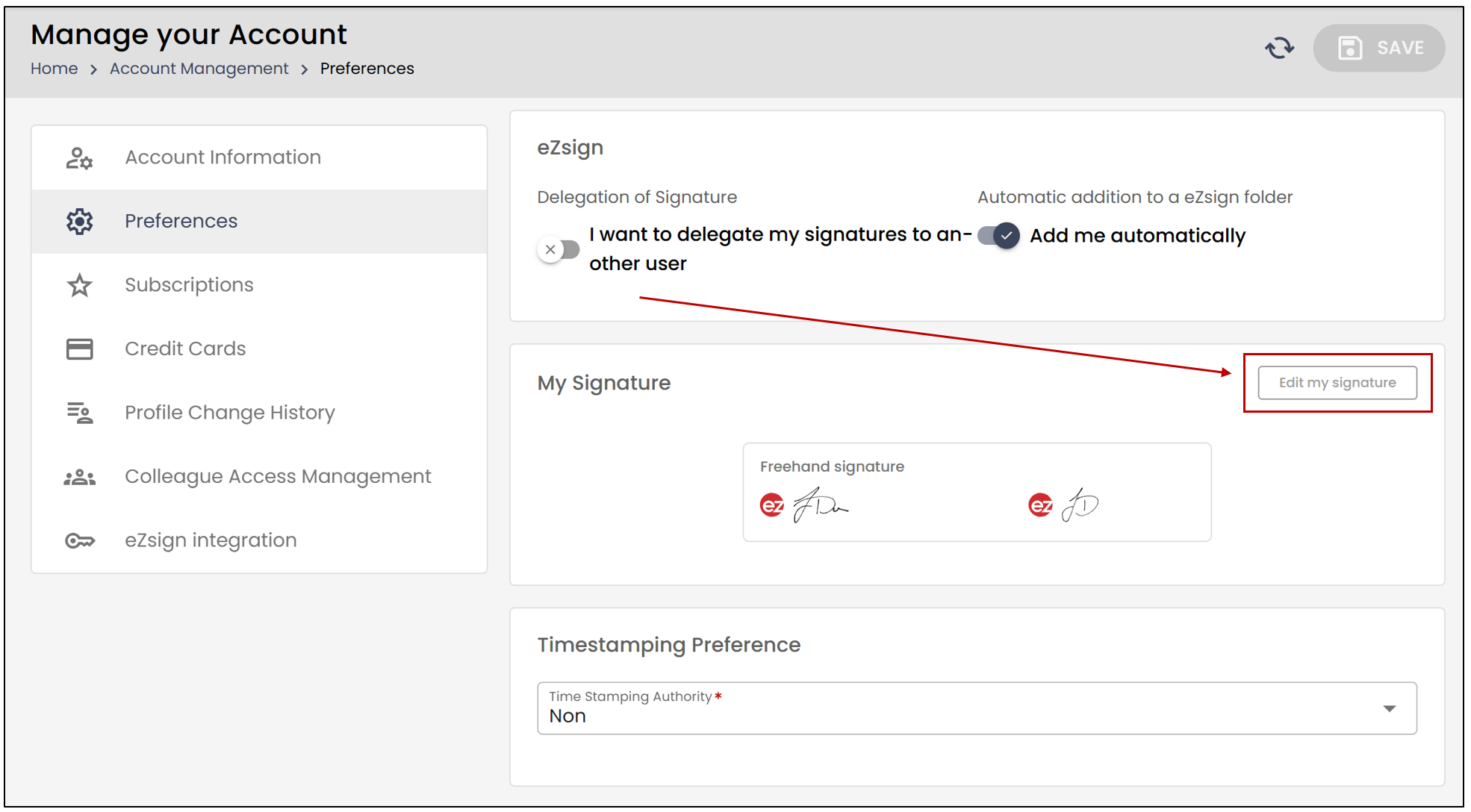
- Then, in the My signature section, click on Edit my signature.
Formatted Signature
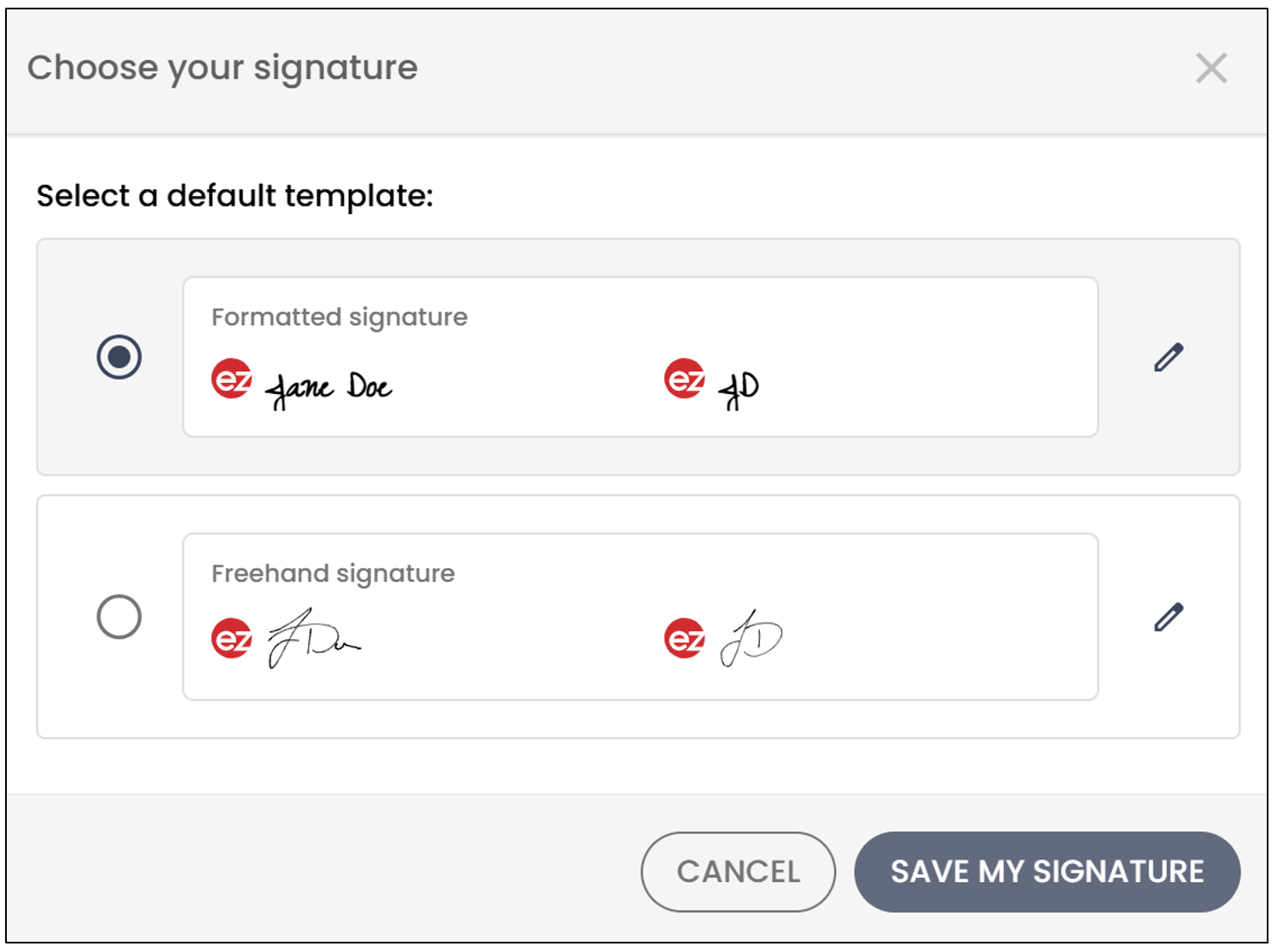
The formatted signature allows for the use of a signature format and initials.
- To modify the formatted signature, click on the

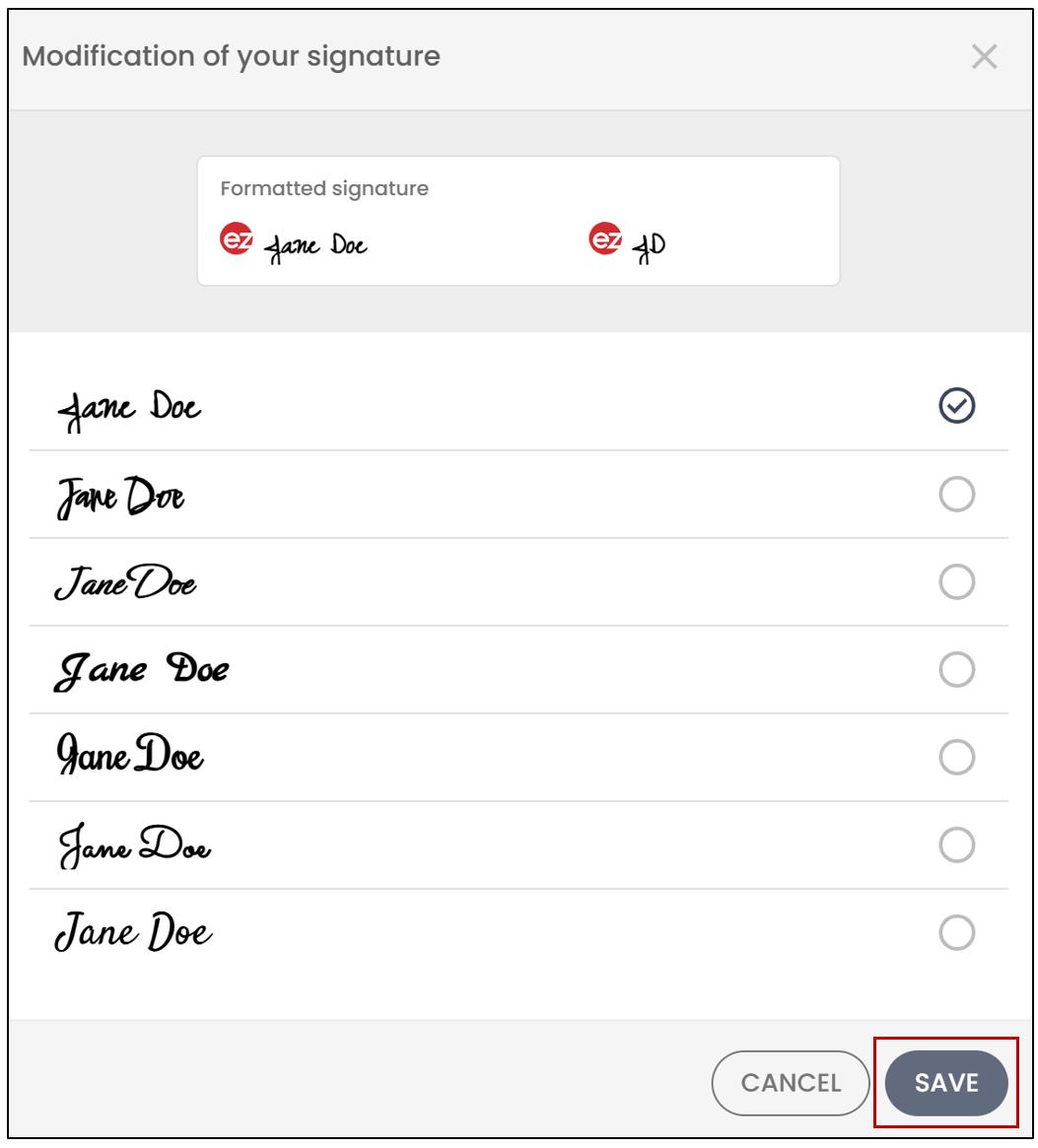
icon. You will have the choice of several font options for your signature.
- Choose the desired font, then click on Save.
- You will then need to click on Save my Signature to save your changes.
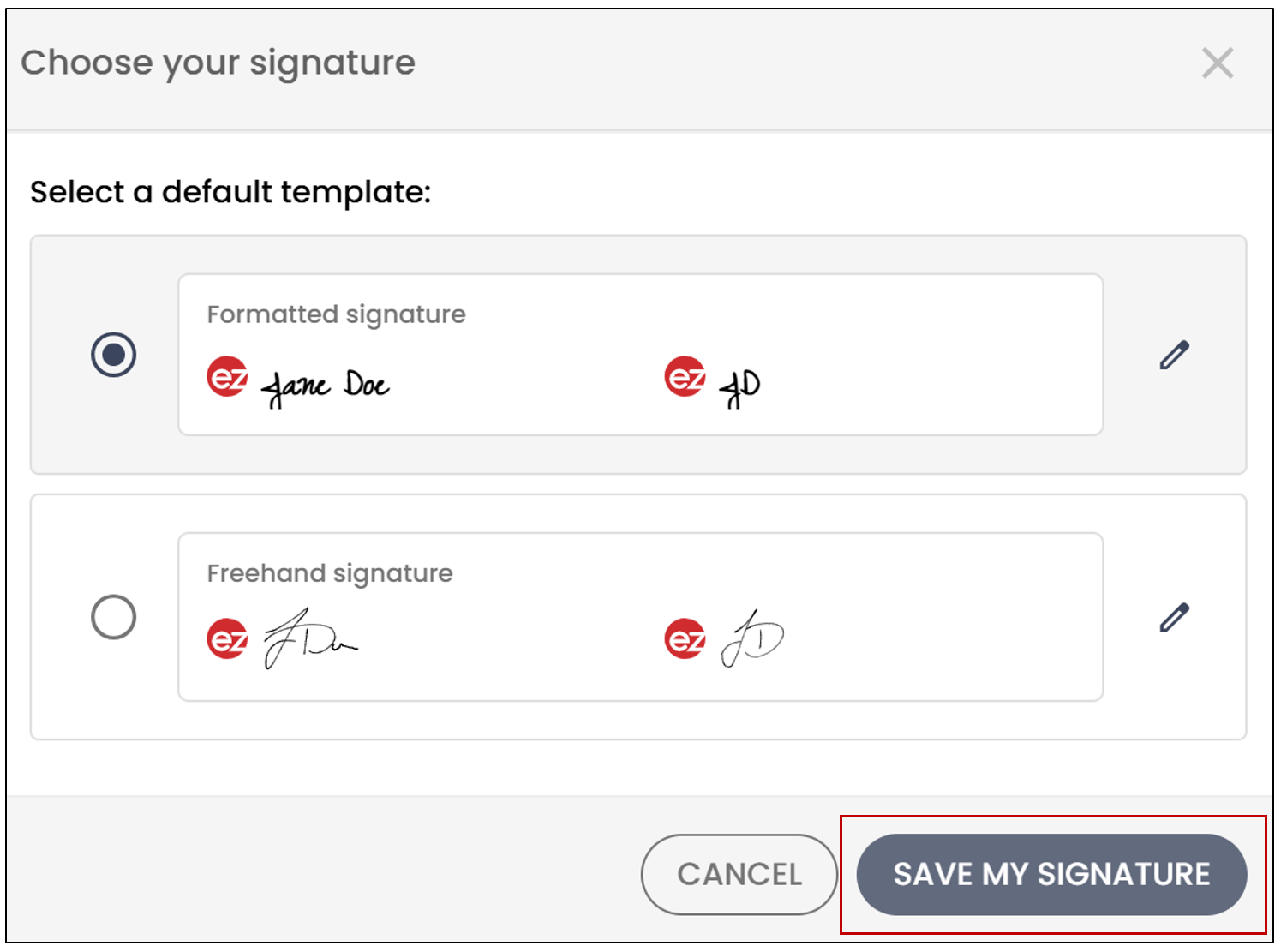
NOTE: It is possible that, despite your preference to use a formatted signature, you may need to use the handwritten signature because the document’s signature field uses the option to Force a handwritten signature.
Freehand Signature
The freehand signature allows you to use a handwritten signature when signing a document.
- To modify the freehand signature, click on the
icon.
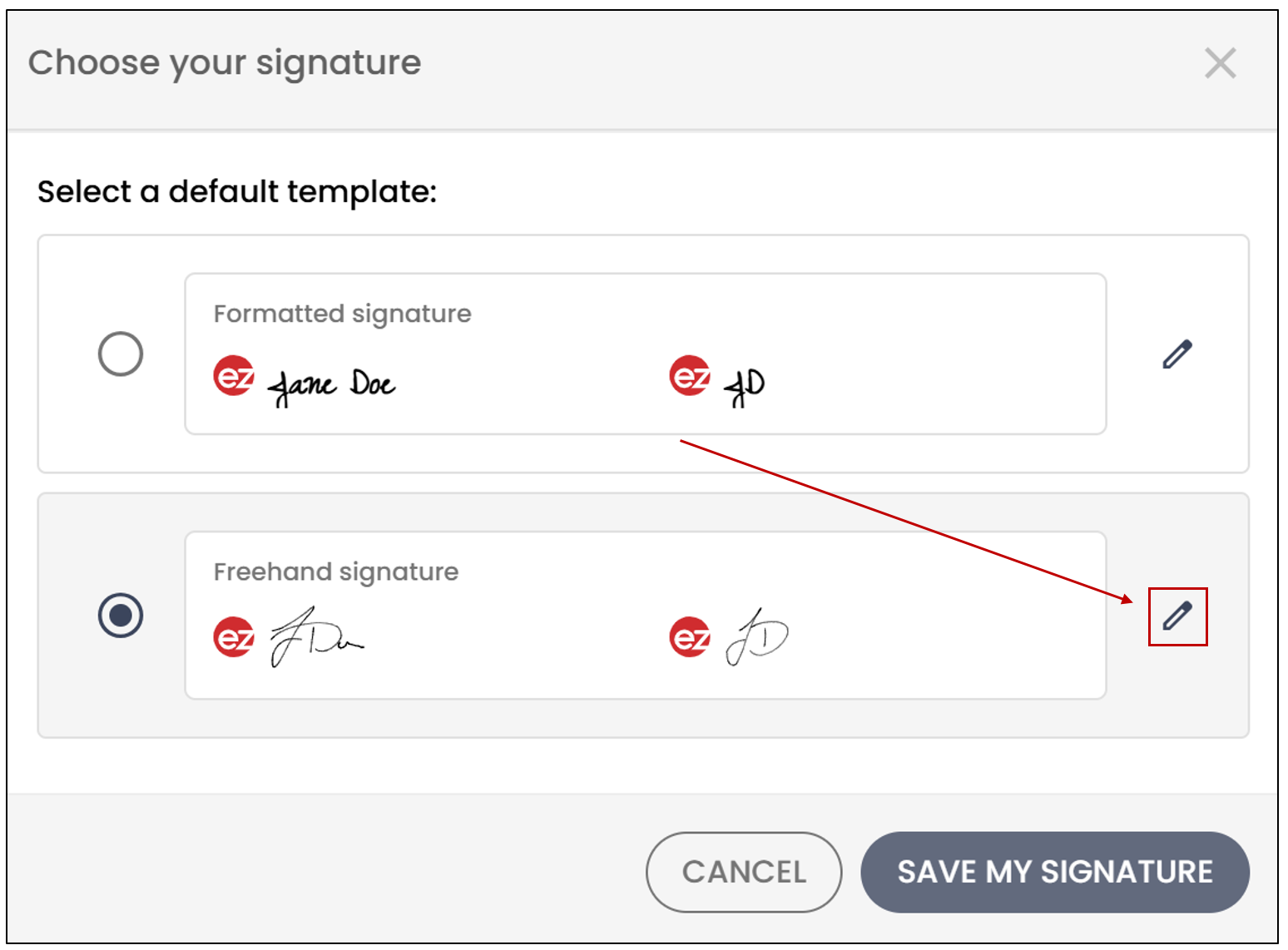
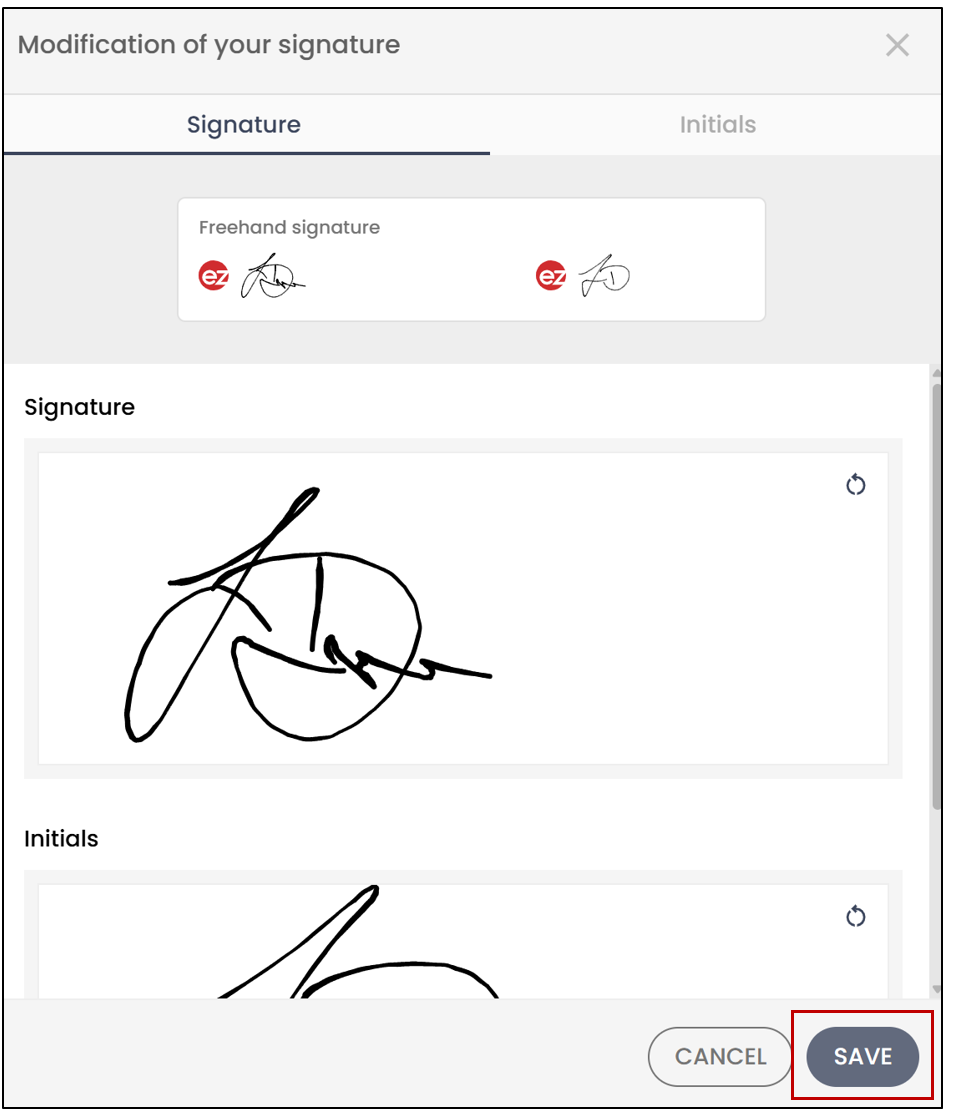
- You will be able to add your signature, as well as your initials, and click on Save.
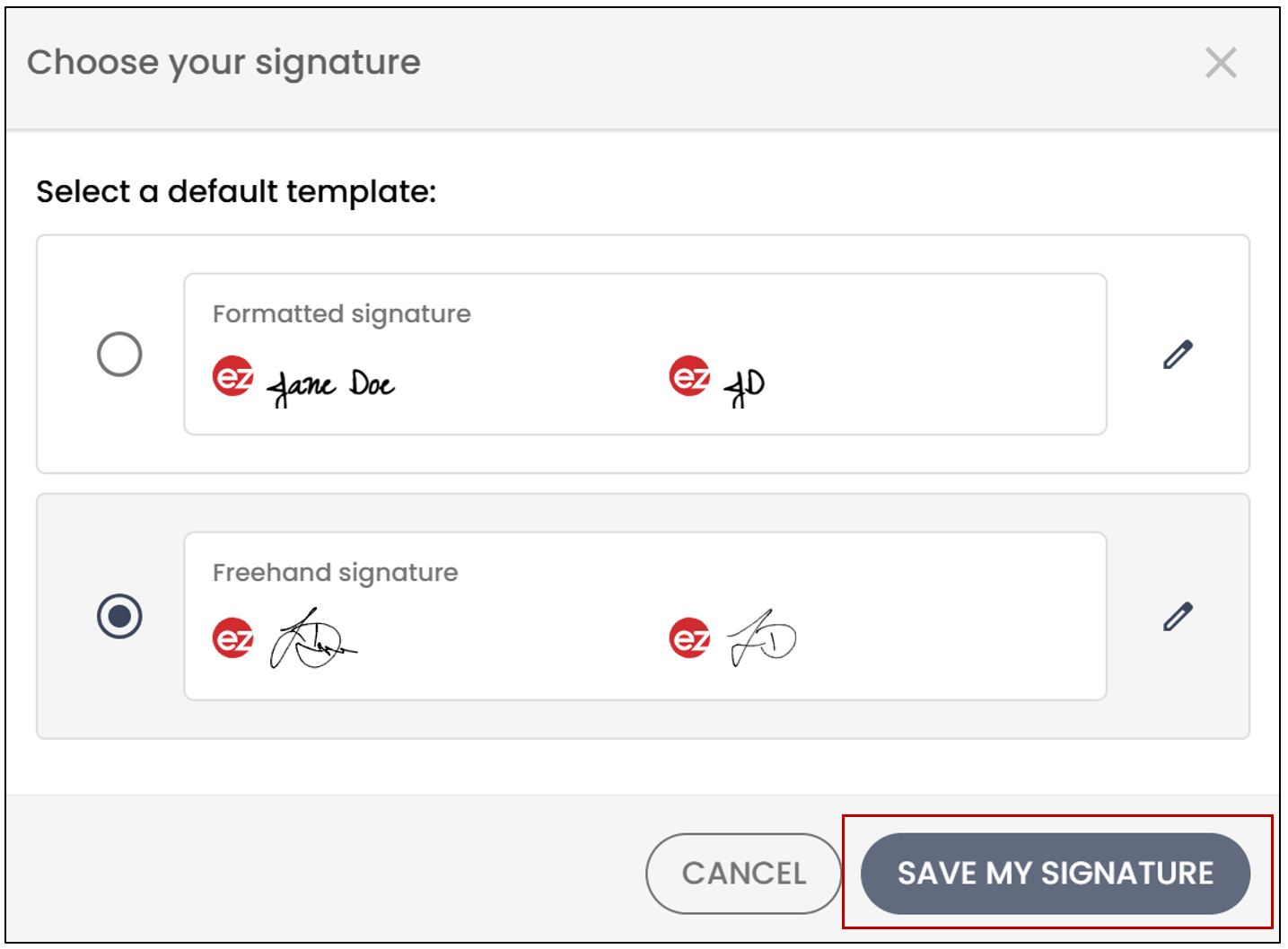
- You will then need to click on Save my signature to save your changes.
Personalized Signature for an External User
When signing for an external user, they will have the same signature options as eZsign users. The external signer will be able to apply a Formatted Signature or a Freehand Signature.
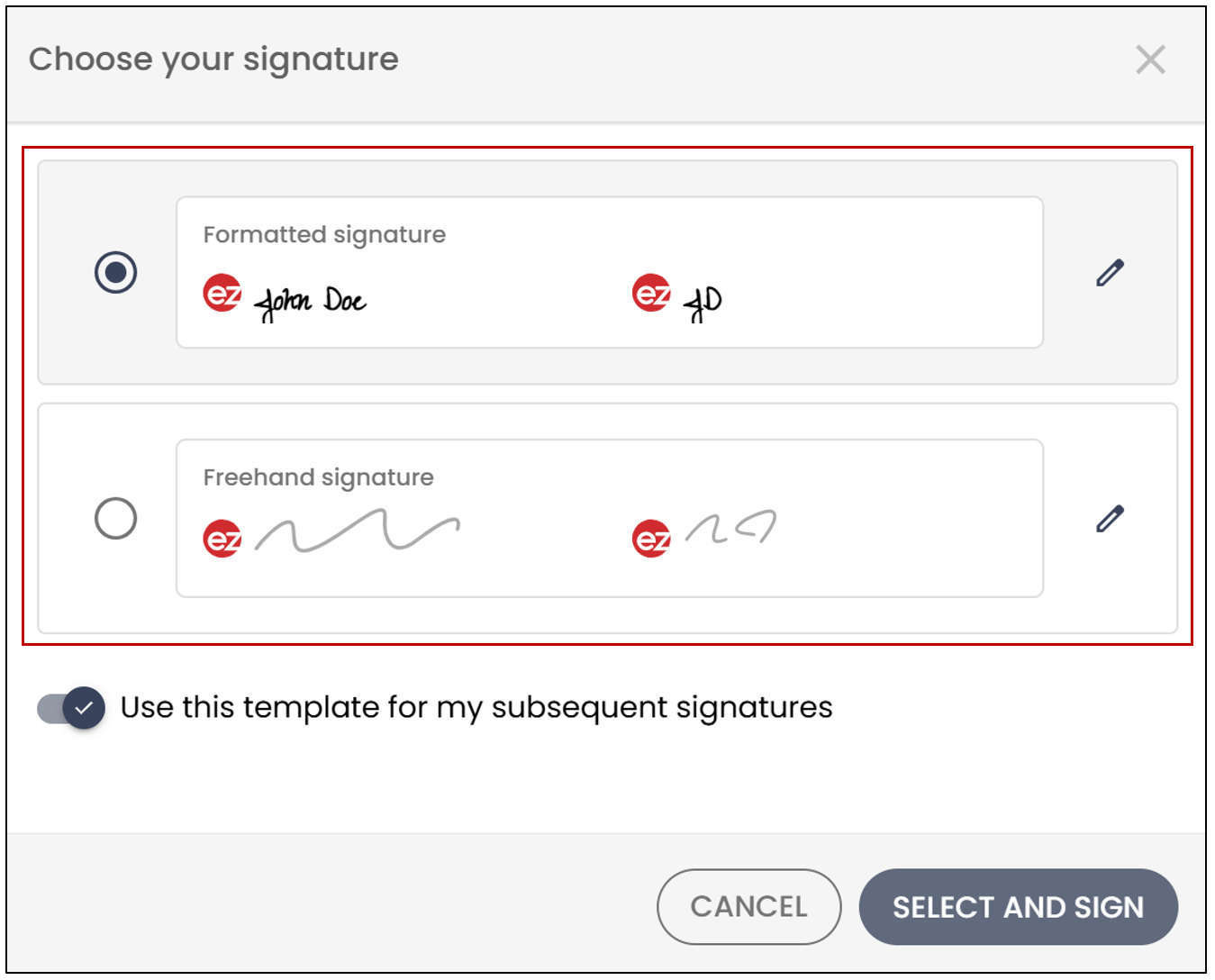
Formatted Signature
The formatted signature allows for the use of a signature format and initials.
- To modify the formatted signature, click on the
icon. You will have the choice of several font options for your signature.
- Choose the desired font, then click on Save.
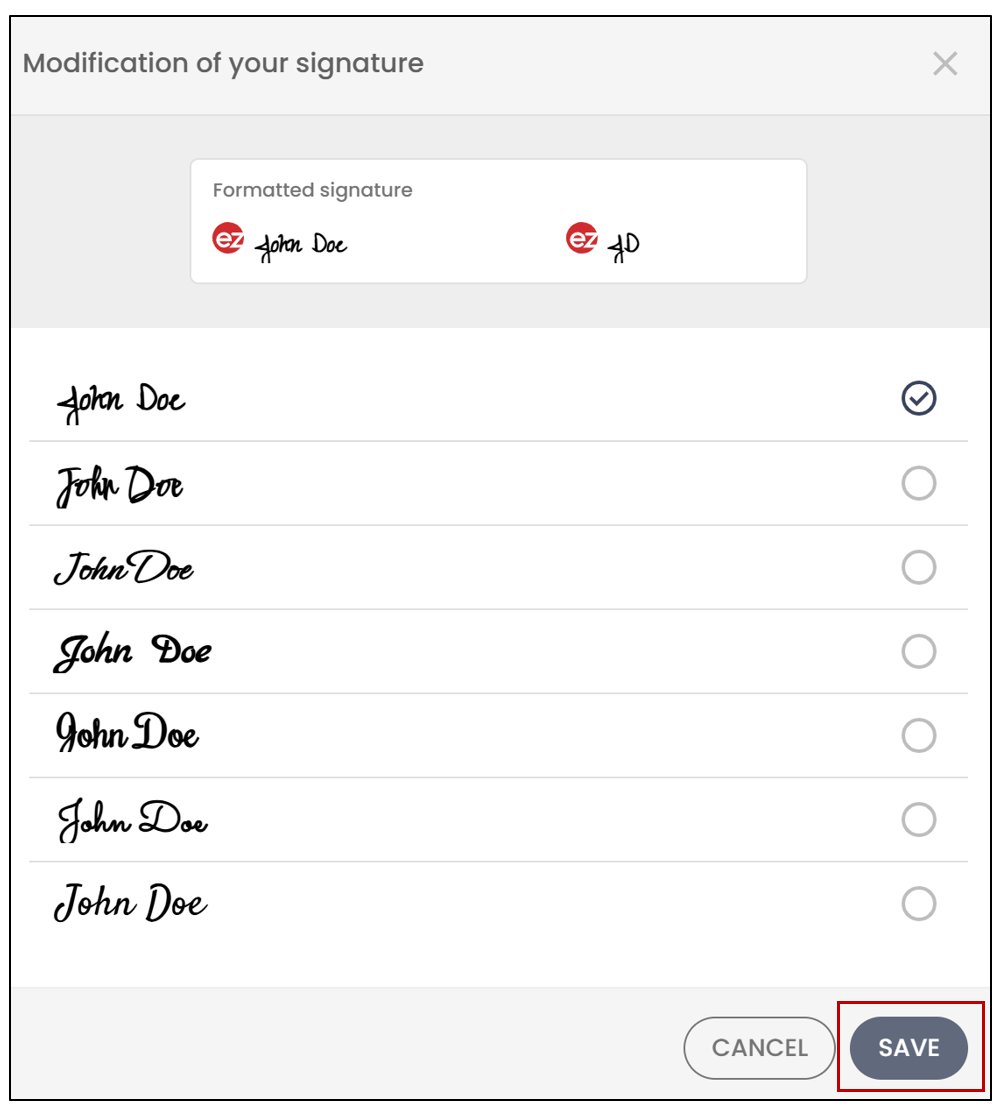
- You will then need to click on Select and Sign.
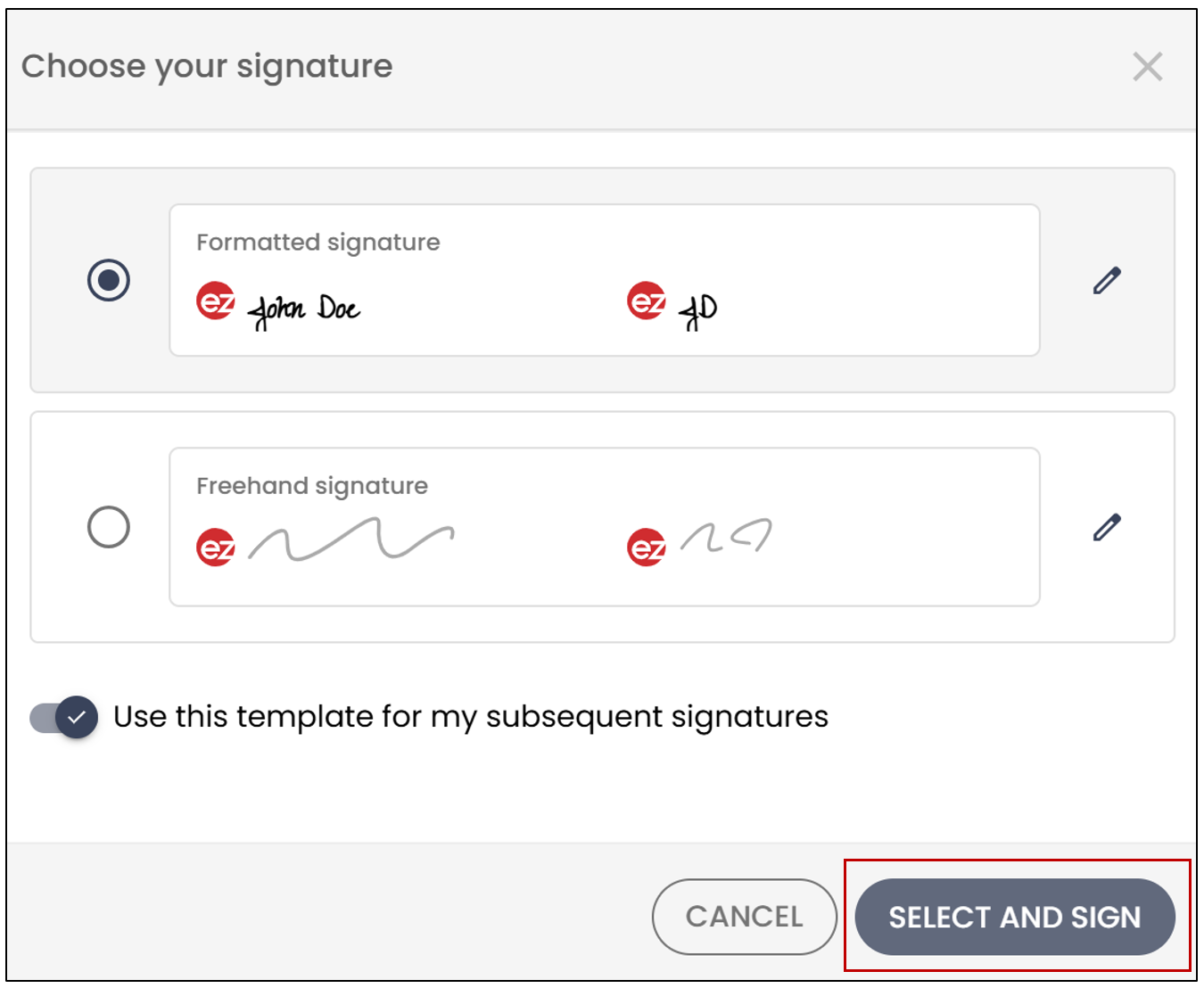
NOTE: It is possible that, despite your preference to use a formatted signature, you may need to use the handwritten signature because the document’s signature field uses the option to Force a handwritten signature.
Freehand Signature
The freehand signature allows you to use a handwritten signature when signing a document.
- To modify the freehand signature, click on the
icon.
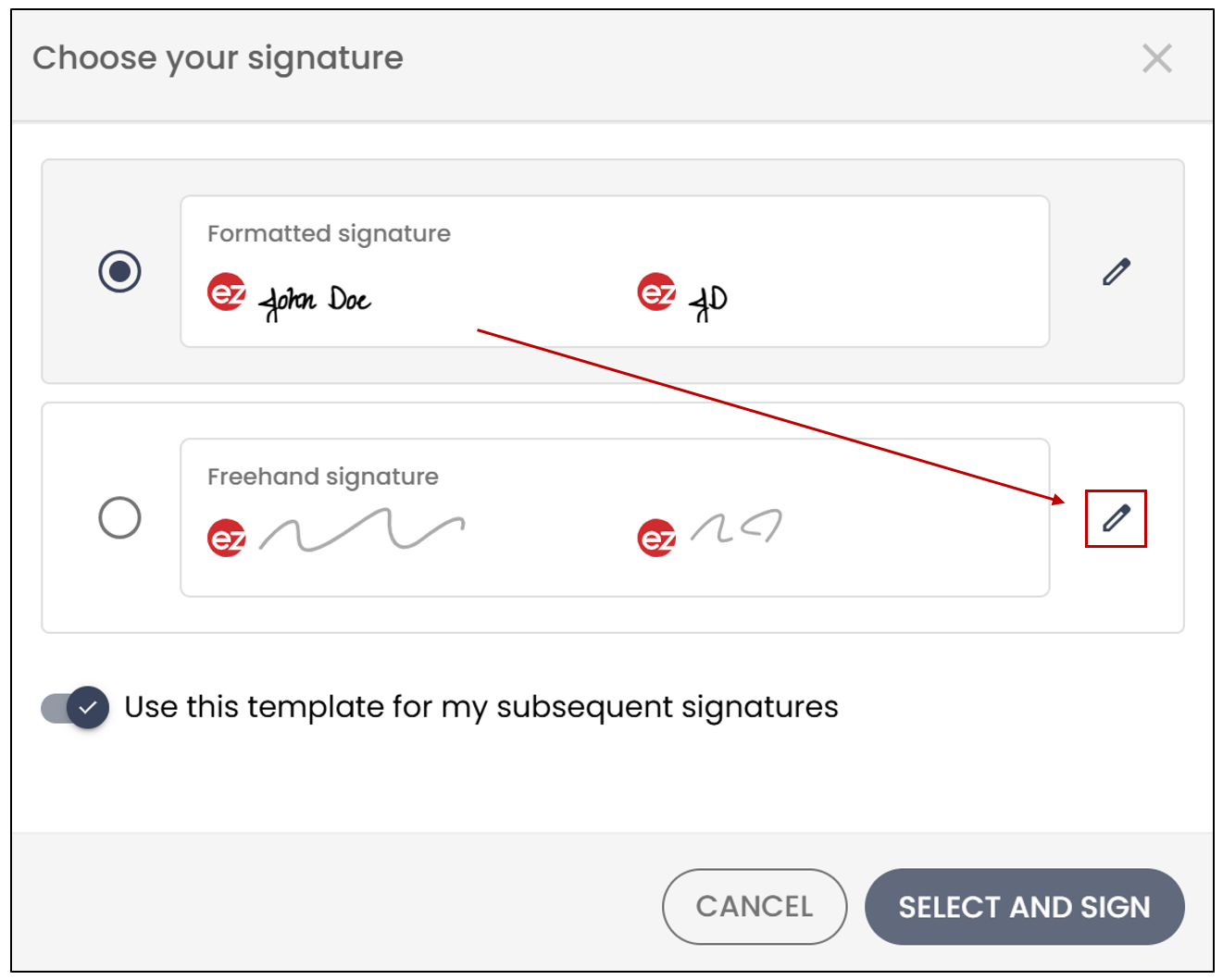
- You will be able to add your signature, as well as your initials, and click on Save.
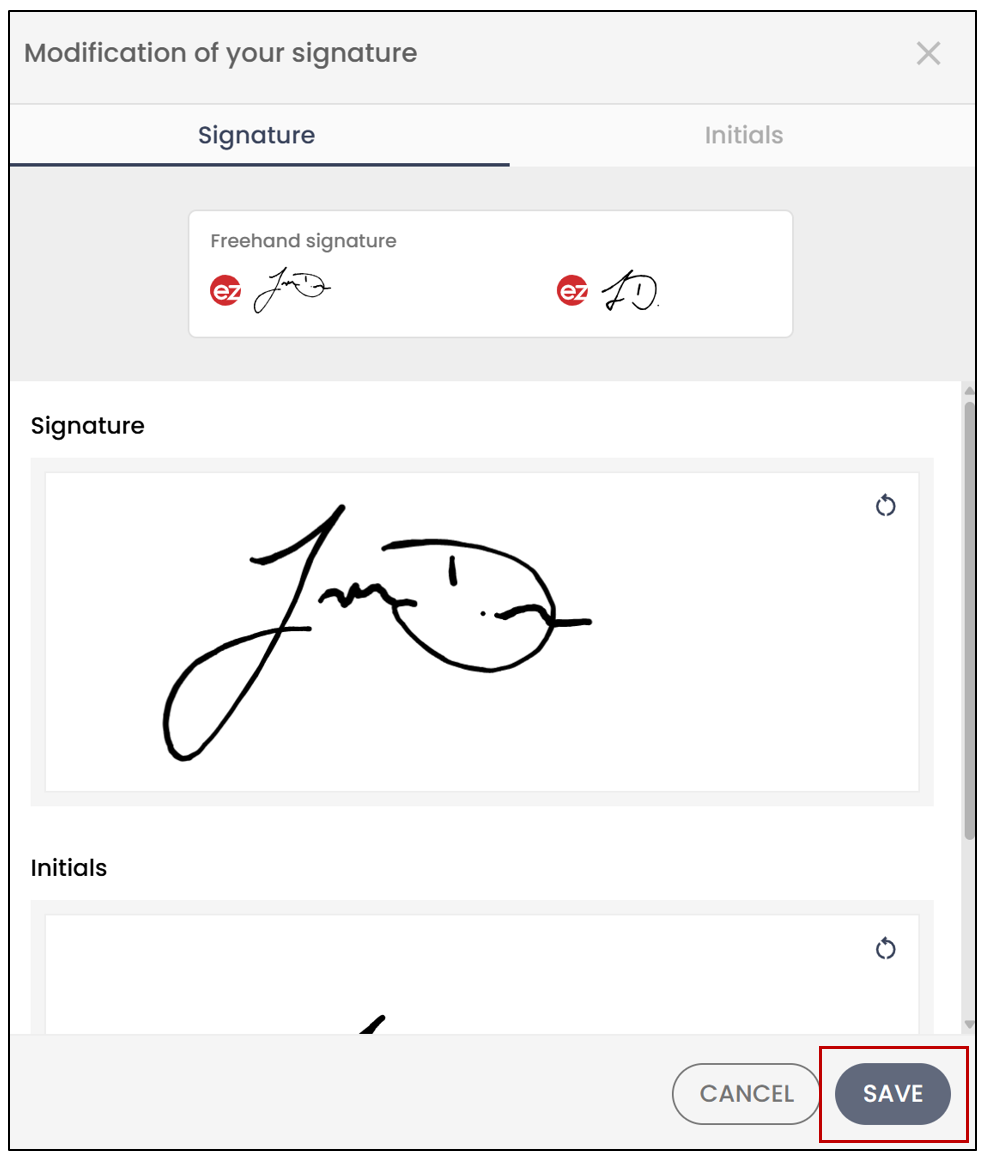
- You will then need to click on Select and Sign.
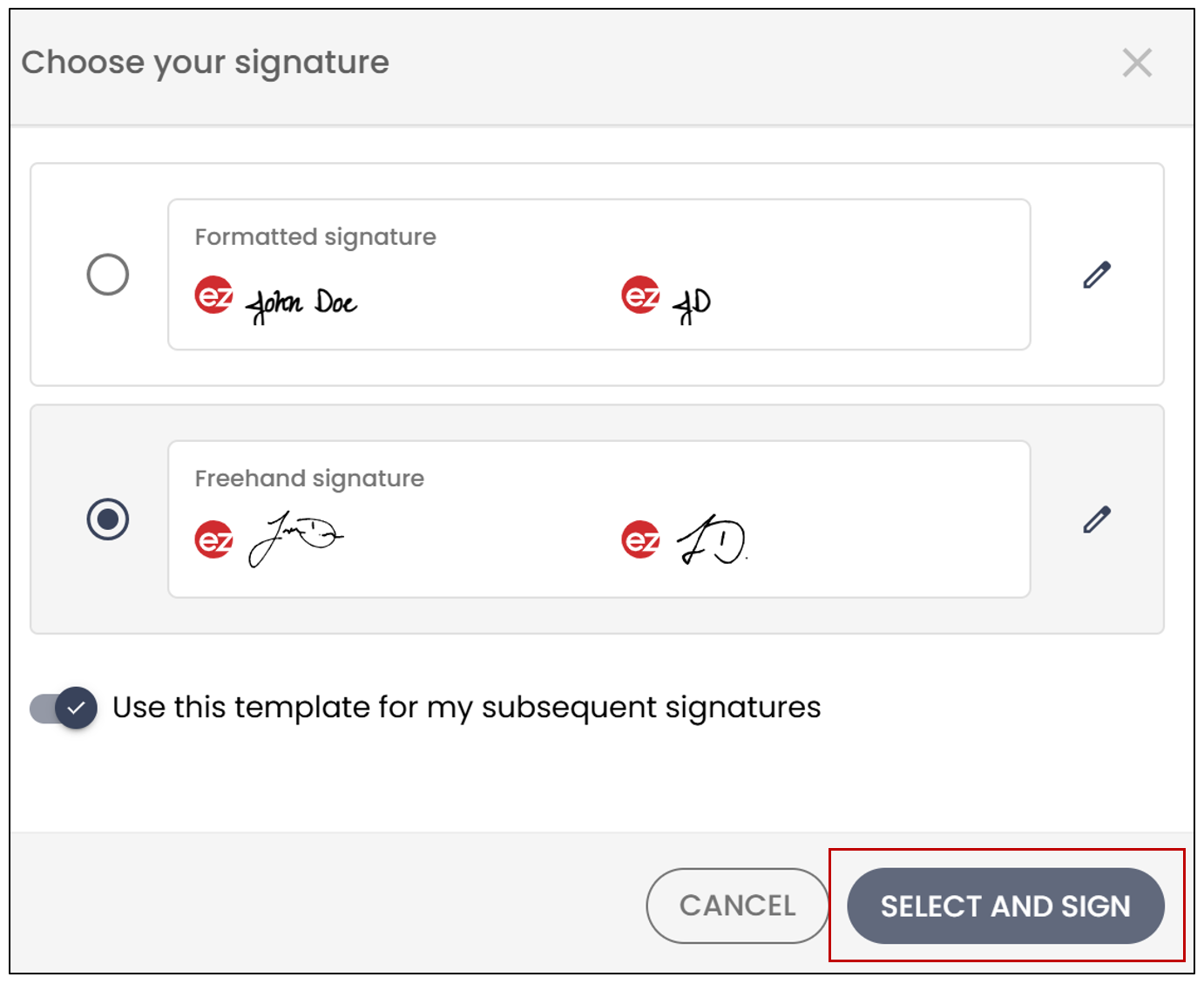
- You will also have the option to Use this template for my subsequent signatures. With this option, you won’t need to choose a signature again; the one you select will automatically apply to your future signatures.
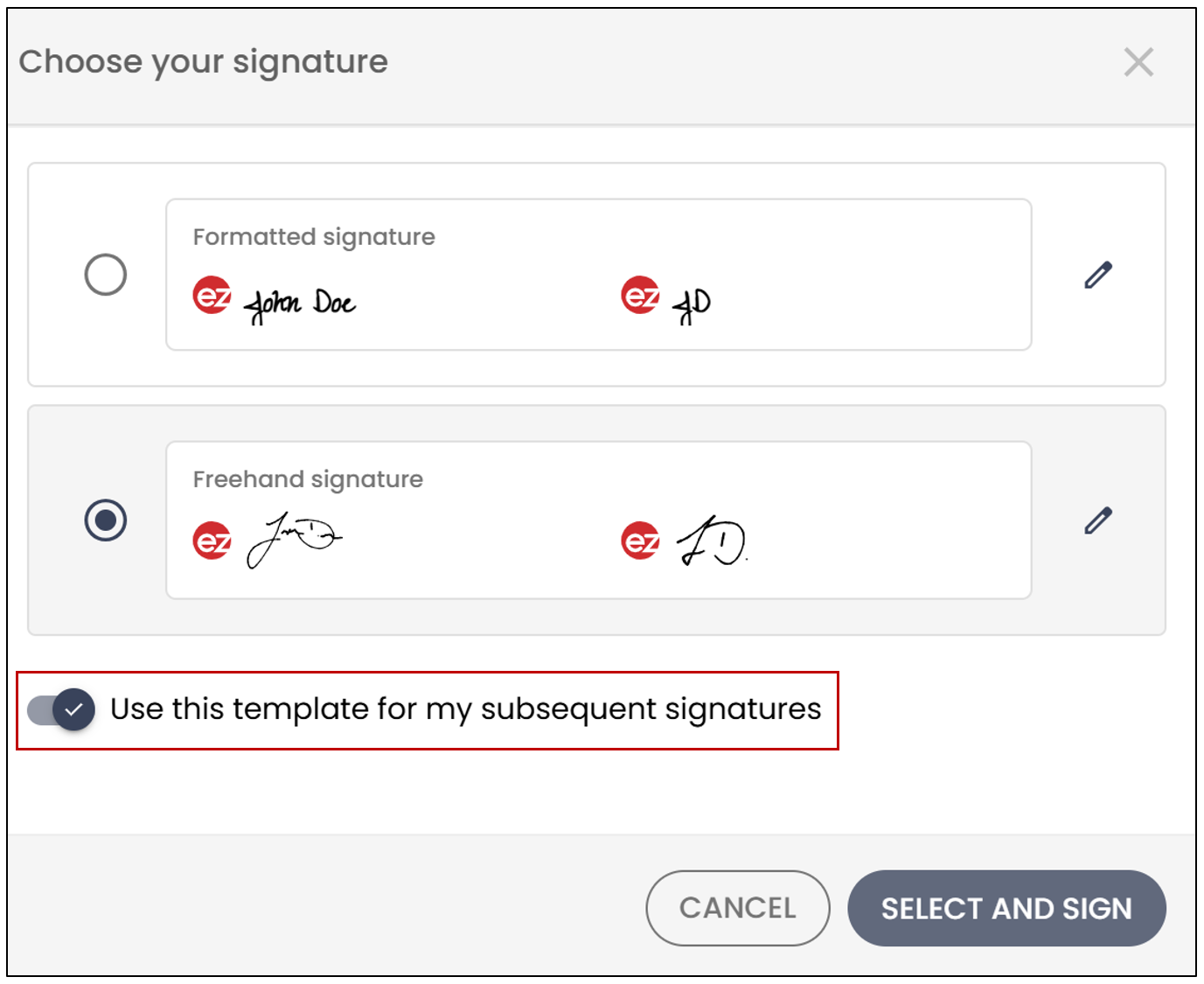
NOTE: If the user adds other documents in the same folder, you will be able to sign without having to select a signature again. If you need to apply your signature to a document from a different folder, you will have the option to reconfigure your signature.