
English
Add/Edit an External User Group
With external user groups, you can synchronize the groups from your Identity Provider (for example, Microsoft Entra, AzureAD, Imprivata, OneLogin, etc.) with eZsign user groups. You can create an external user group only if you have an Enterprise account. This feature is only useful if SSO is enabled.
Add an External User Group
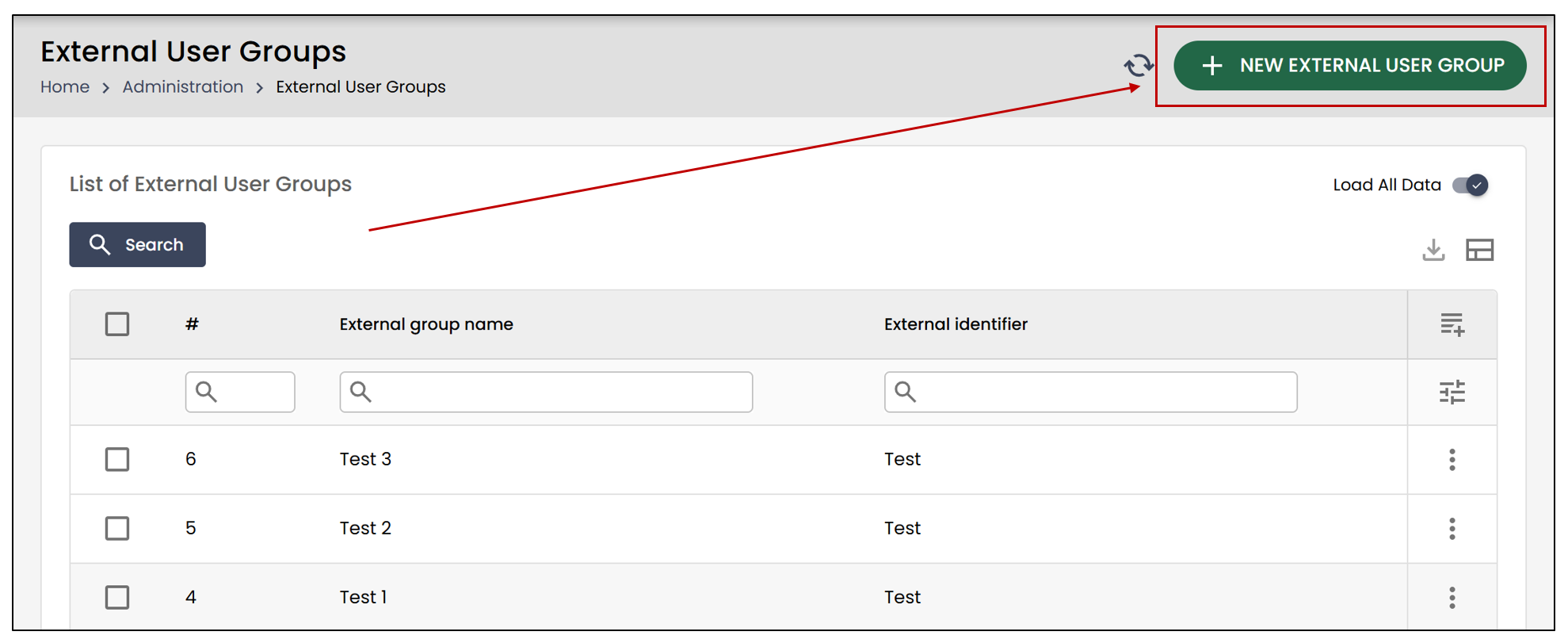
From the Administration menu, select External User Groups.
- Click the New External User Group button.
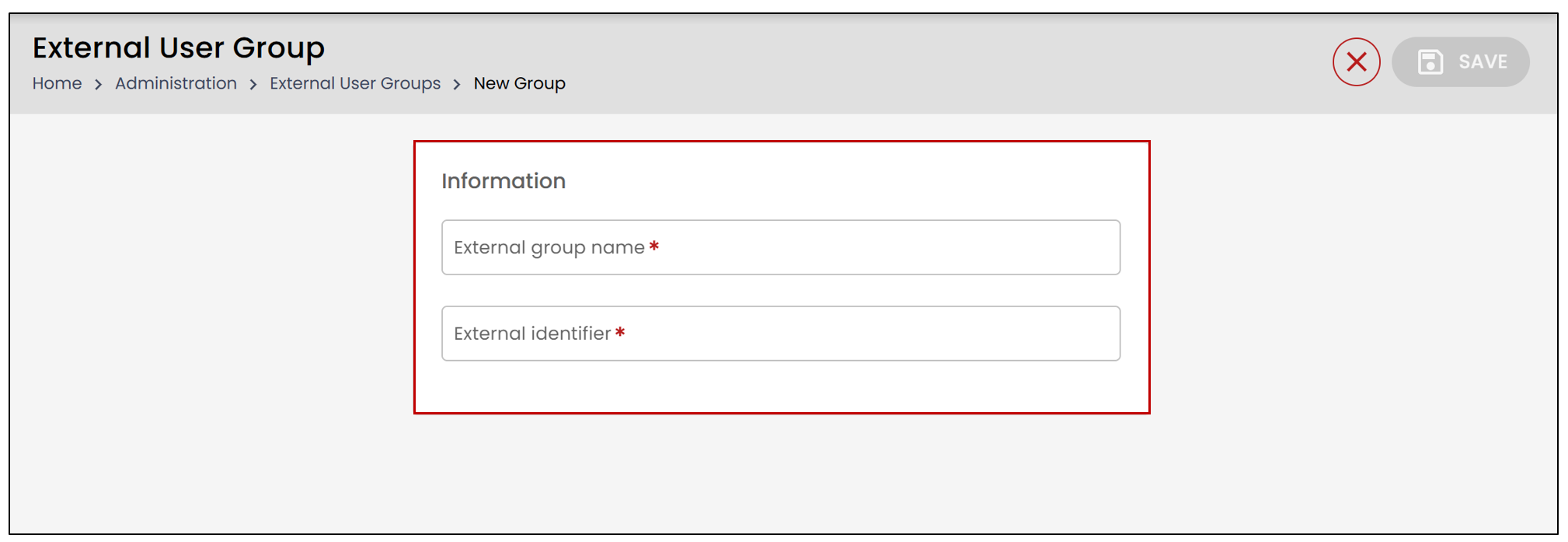
Enter the External Group Name. We recommend choosing a name that clearly describes the group. For example, you could use the same name as the group associated in your Identity Provider.
External Identifier : This is the identifier of the group in your Identity Provider. All members associated with this group in your Identity Provider will, by default, be added to the external user group.
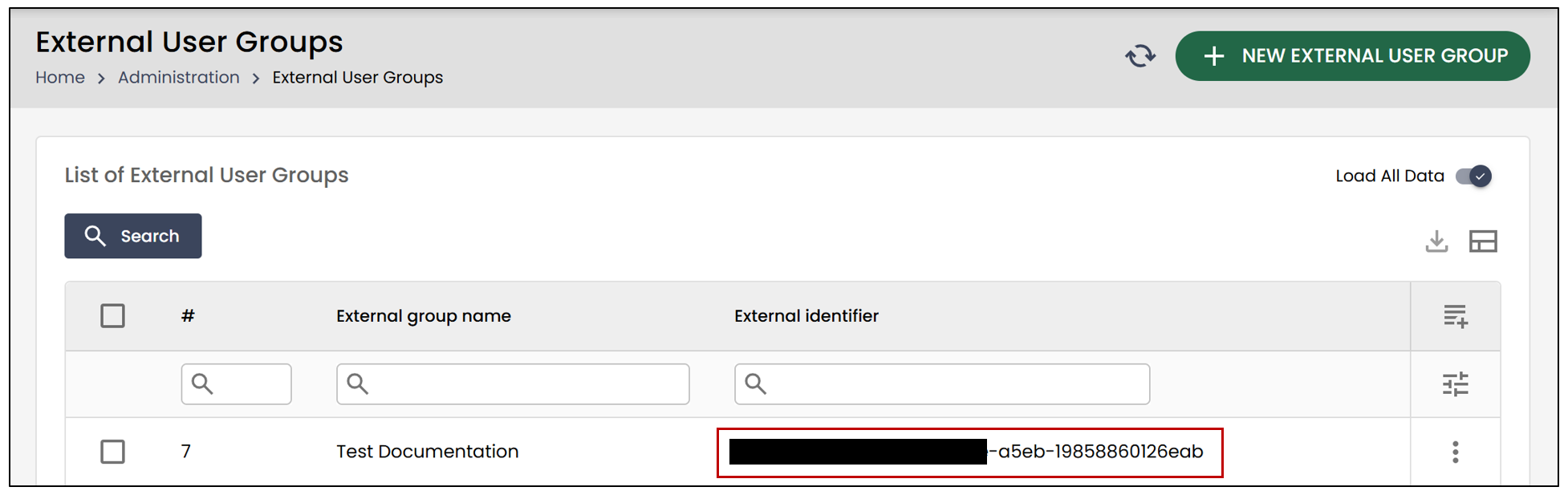
NOTE: The External Identifier corresponds to your group’s unique ID. It should look something like this (partially masked for security reasons):
- Click Save. Once the group is created, you will be able to see the users who were created through SSO in eZsign and who are part of this external group.
Edit an External User Group
- To make changes to your user group, click Modify the External User Group.
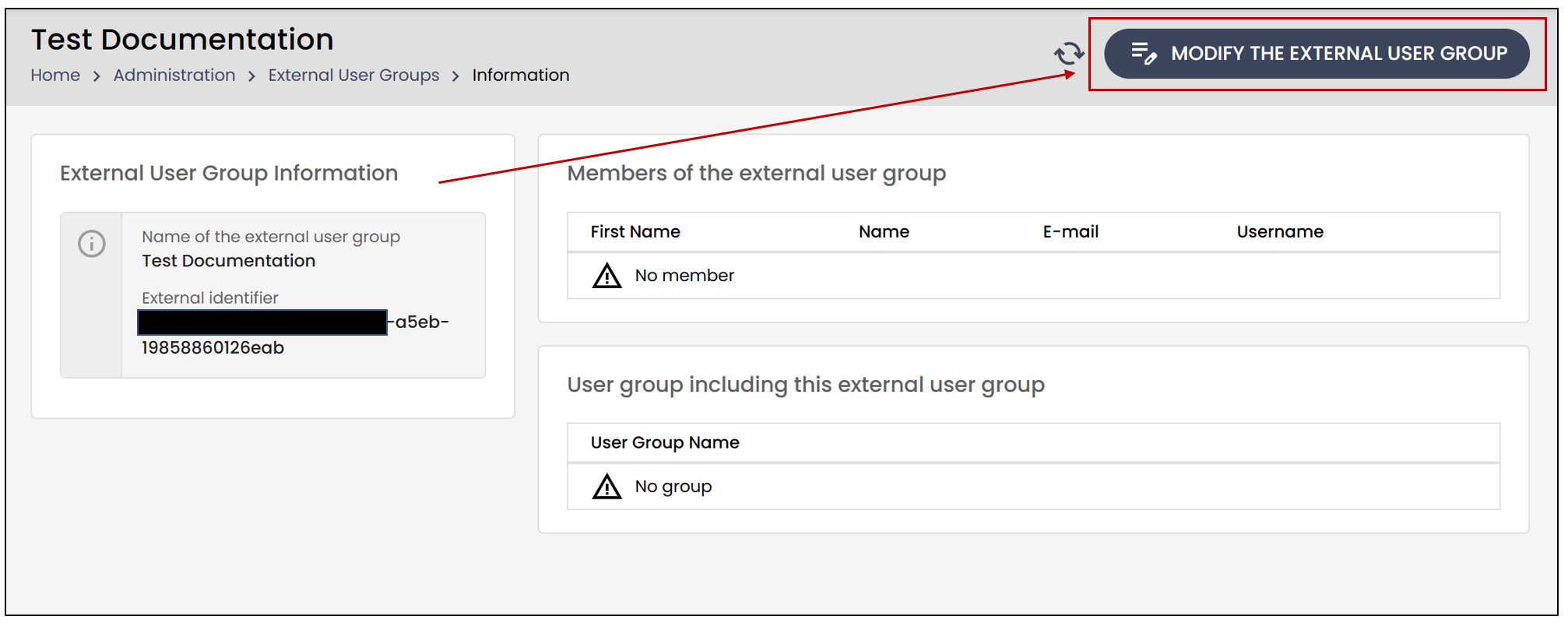
- Only the group name and the external identifier can be modified. When you are finished, click on Save at the top right.
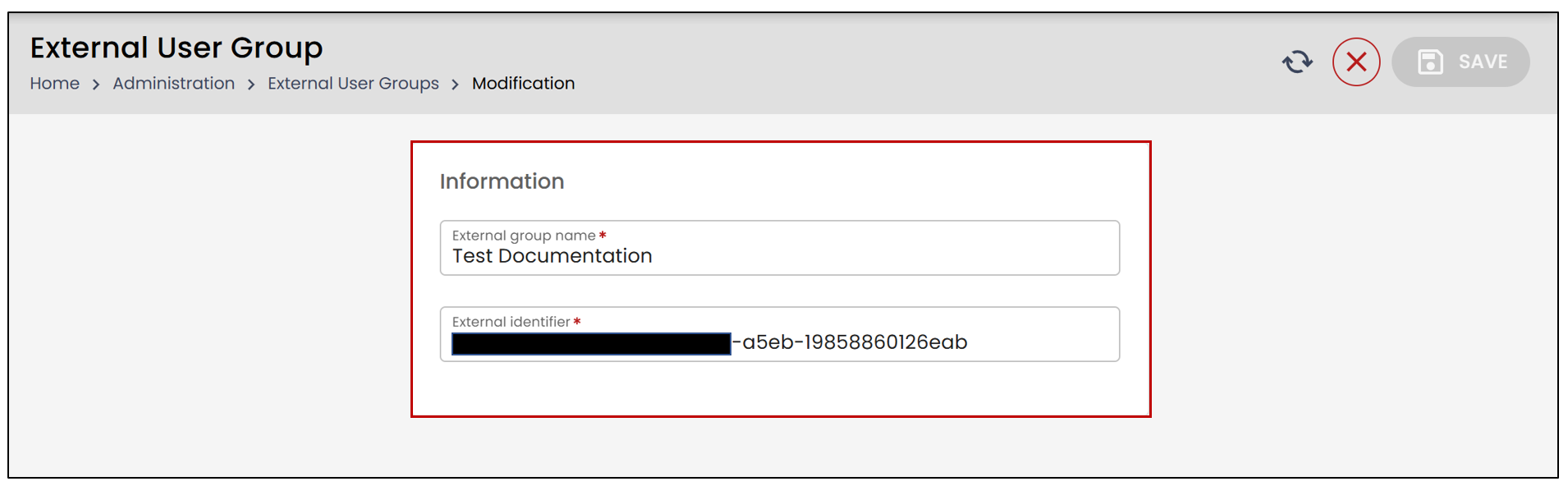
NOTE: You will then need to add your external user group to a user group.
Adding Your External User Group to a User Group
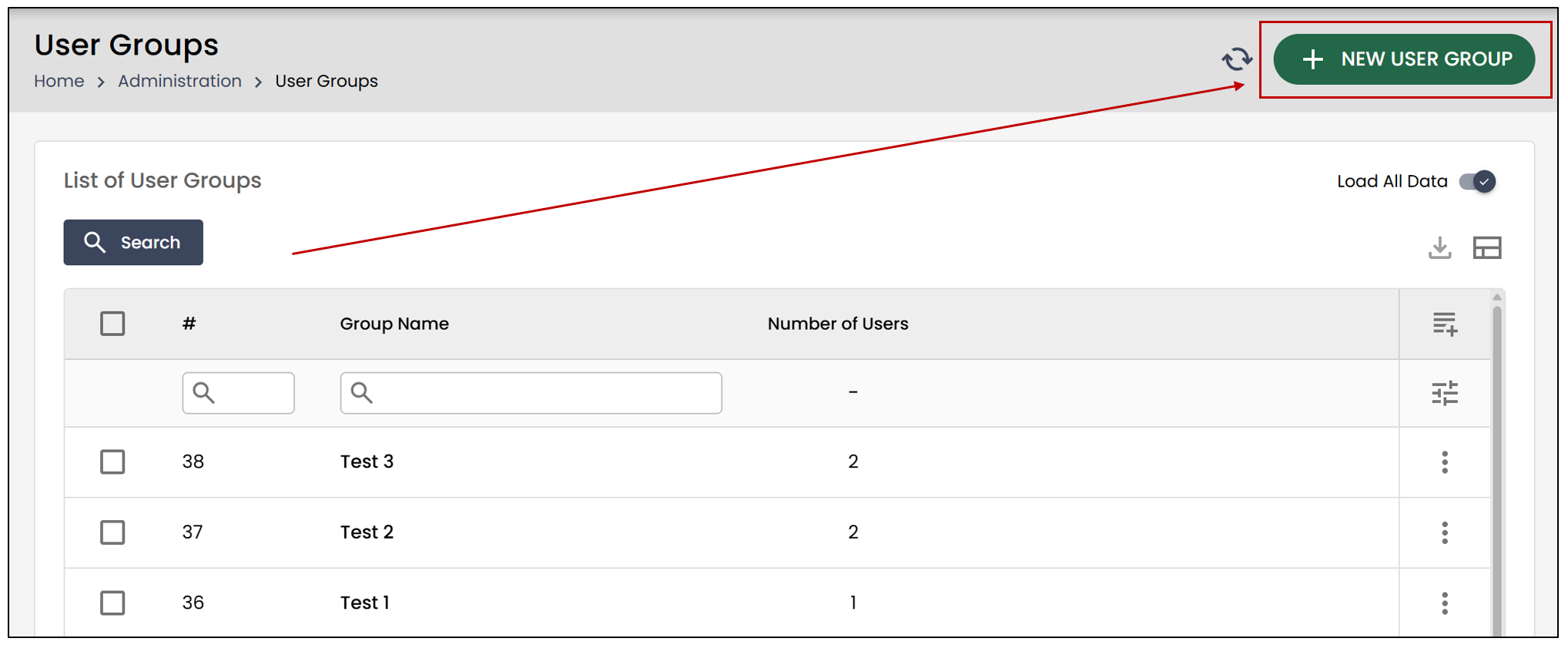
From the Administration menu, select User Groups.
- Click the New User Group button or select a group from the drop-down list.
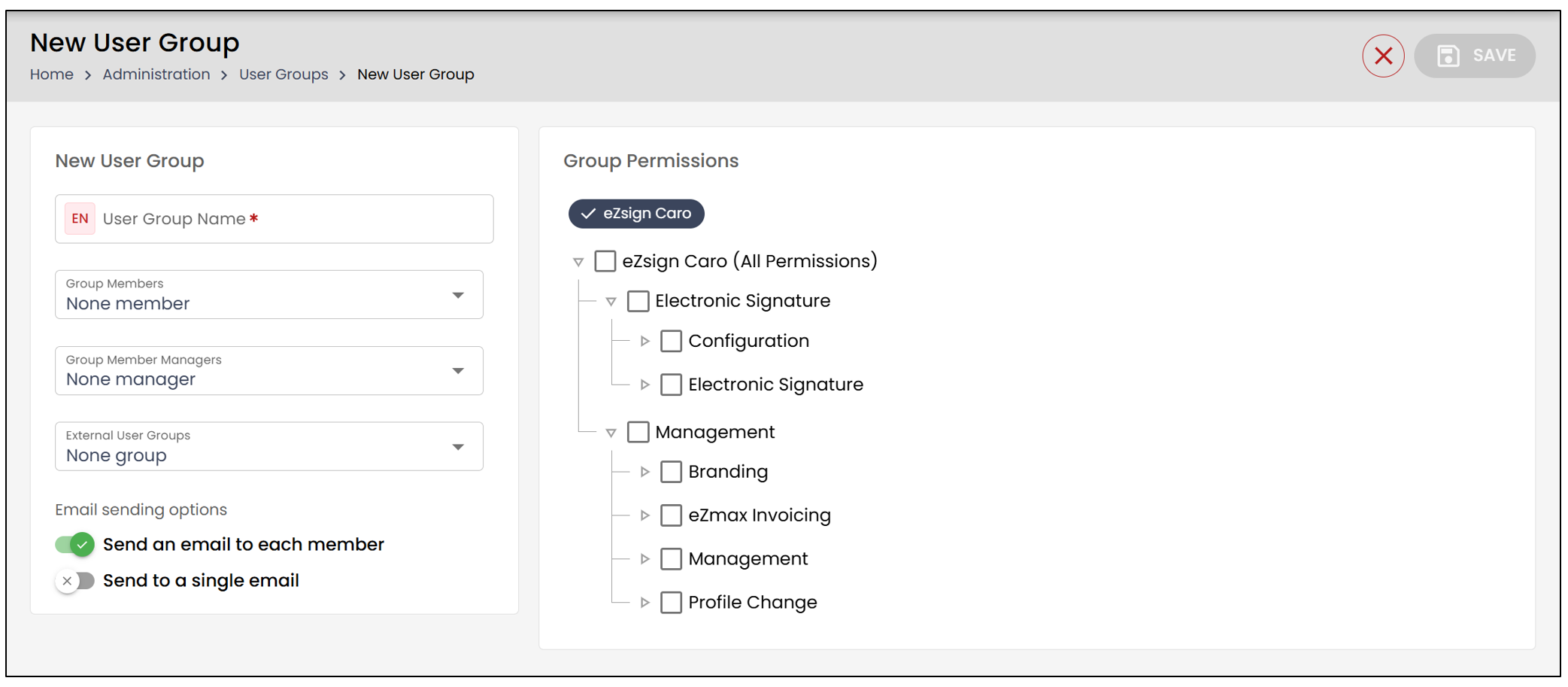
- In the External User Groups section, you can select your group using the arrows. The double arrow selects all groups with a single click, while the single arrow only selects the groups that have been checked.
Please refer to the article Adding/Editing a User Group for more information.
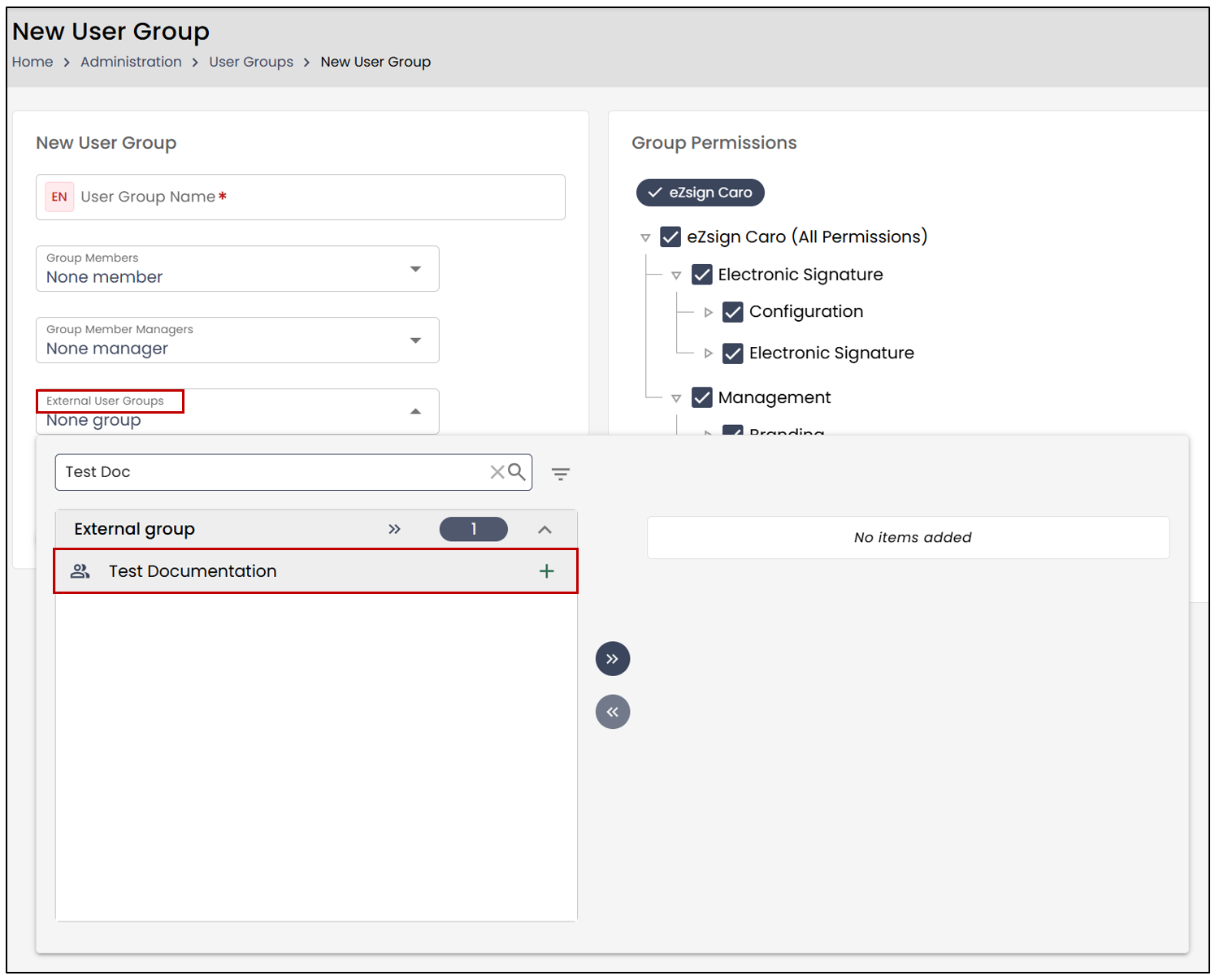
NOTE: The permissions associated with this user group will automatically apply to all members of this external group in your organization who sign in via SSO. For more information on permissions, please refer to the article Permissions Granted to Users in eZsign.
If some users are already signed in, they will need to completely sign out of their Microsoft account and then sign back in for the changes to take effect. This is because the authentication token does not update during an active session.
To enable this synchronization, you must first add a new group claim.